How to Install a Thin Client in a Windows 10 Environment
Installing a thin client in a Windows 10 environment primarily involves connecting the thin client hardware to your network and display, and then configuring it to connect to a central server or cloud desktop. Unlike a traditional PC, a thin client like the Thinvent® Neo S series does not run applications locally. Instead, it acts as a gateway, using protocols like RDP, Citrix HDX, or VMware Blast to access a virtual desktop (like Windows 10 or 11) hosted on a server within your data center or in the cloud. The installation is a straightforward hardware setup followed by software configuration to point the device to your specific virtual desktop infrastructure (VDI).
The process typically involves these steps:
-
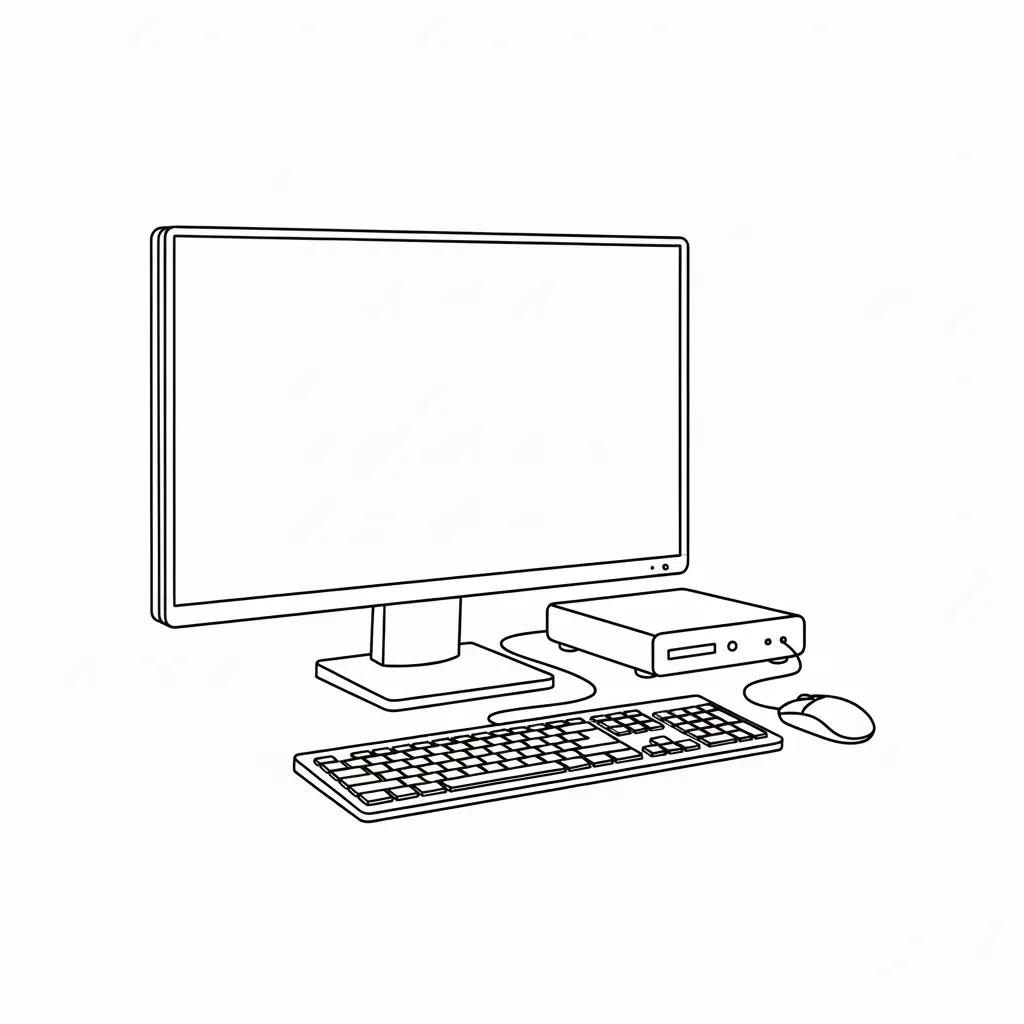
Physical Setup: Connect the thin client to power, a monitor (via HDMI or VGA), keyboard, mouse, and your network (via Ethernet or Wi-Fi, depending on the model).
-
Initial Boot & Network Configuration: Power on the device. Upon first boot, you will be guided through basic settings like language, network configuration (IP address, DNS), and connecting to your wireless network if applicable.
-
Connection Broker Configuration: This is the core step. You will enter the details of your connection broker—the address of your Citrix, VMware, Microsoft RDS, or other VDI environment. This includes server addresses, domain information, and user credentials.
-
Security & Optimization: Configure security settings like SSL certificates and encryption levels. You can also optimize settings for multimedia, USB redirection, and display resolution based on your use case and network bandwidth.
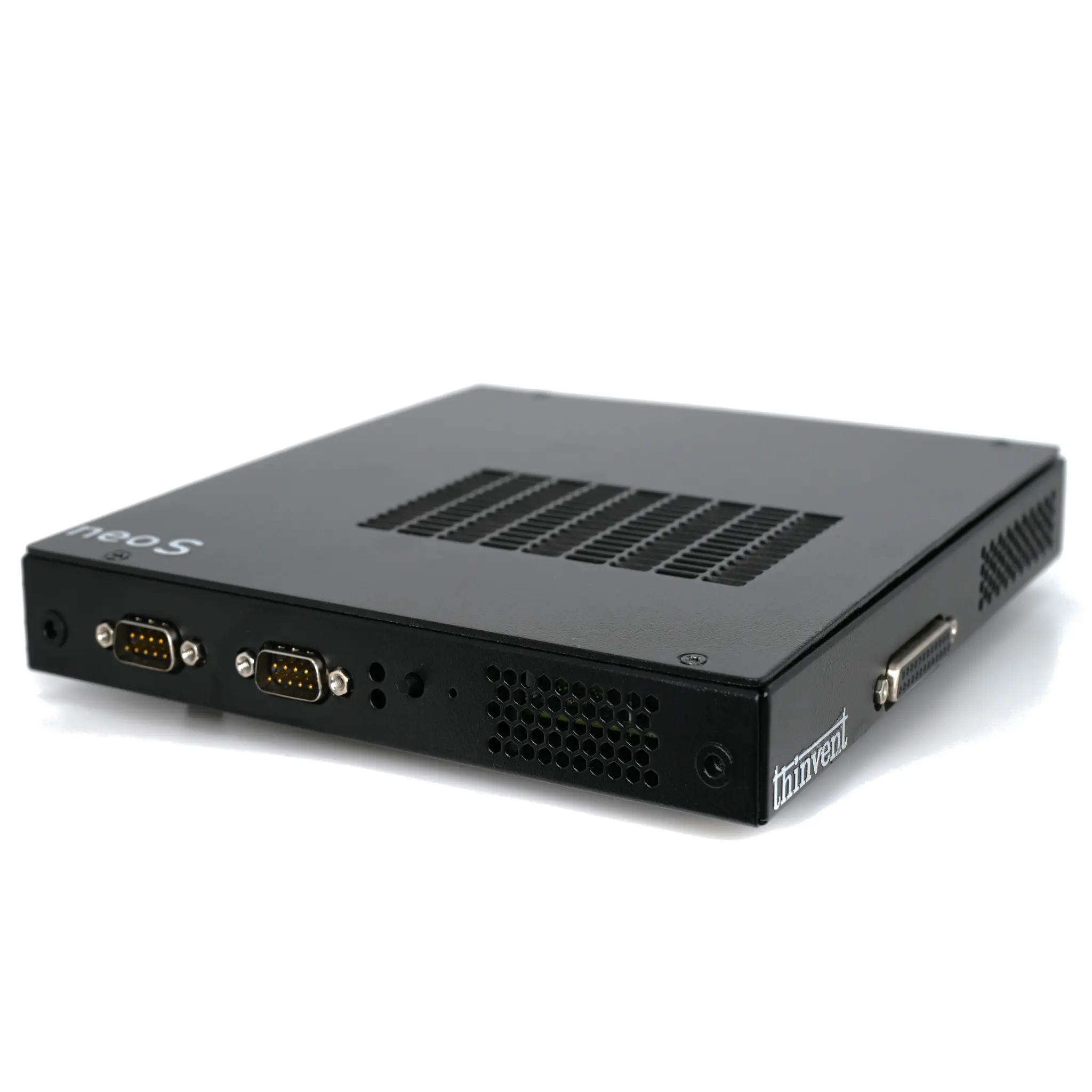
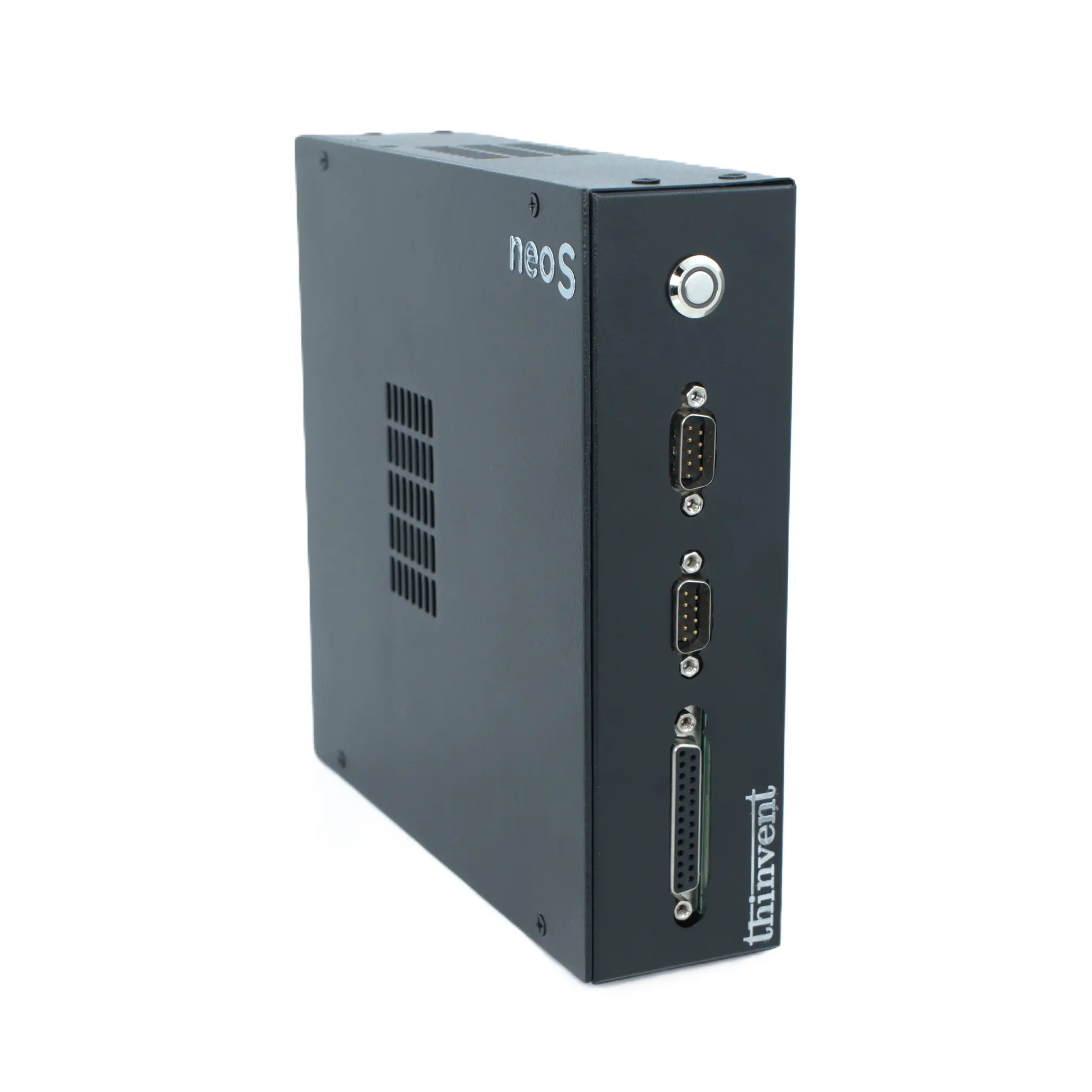
Key technical specifications of modern thin clients, such as the Thinvent® Neo S series, directly impact their performance in a Windows 10 VDI scenario. Processors like the Intel® N100 (4 cores, up to 3.4 GHz) provide excellent performance for demanding tasks and multiple high-resolution displays, while the J4125 processor offers reliable efficiency for standard office workloads. Adequate RAM (4GB to 64GB in our range) ensures smooth session handling, and SSD storage (32GB to 1TB) is used for the local operating system (like Windows 11 IoT/Pro) and caching, ensuring fast boot times and responsive operation.
| Use Case / Application | Recommended Thin Client Specs | Key Benefit |
|---|---|---|
| General Office Productivity (Email, Browsing, Office Suites) | J4125 / 4-8GB RAM / 32-128GB SSD | Cost-effective, energy-efficient, perfect for task workers. |
| Knowledge Worker / Multi-Tasking (Multiple apps, HD conferencing) | N100 / 8-16GB RAM / 256GB+ SSD | Powerful CPU handles multitasking and video encoding smoothly. |
| High-Performance & CAD/CAM Users | N100 / 16-64GB RAM / 512GB+ SSD | Maximum CPU power and RAM support complex graphical remoting. |
| Fixed-Function & Kiosk Mode (Digital signage, single app) | J4125 or N100 / 4GB RAM / 32GB SSD | Reliable, secure, and easy to manage in locked-down environments. |
Thinvent® Neo S Thin Clients: Engineered for Windows Virtual Desktops
Thinvent, as a manufacturer with reliable Indian manufacturing serving a global customer base, designs its Neo S Thin Client series specifically for seamless integration into Windows 10/11 VDI environments. Our range offers the flexibility to match the exact performance profile required for your use case, from light-duty task workers to power users. Every device is built with quality components and is pre-loaded with a genuine Windows 11 IoT or Pro operating system, providing a secure and familiar management interface. Whether you need the ultra-modern efficiency of the Intel N100 processor or the proven reliability of the Intel J4125, combined with a wide array of RAM and SSD storage options, Thinvent has a configured Neo S thin client to deliver a superior, secure, and manageable endpoint experience for your virtual desktop infrastructure.