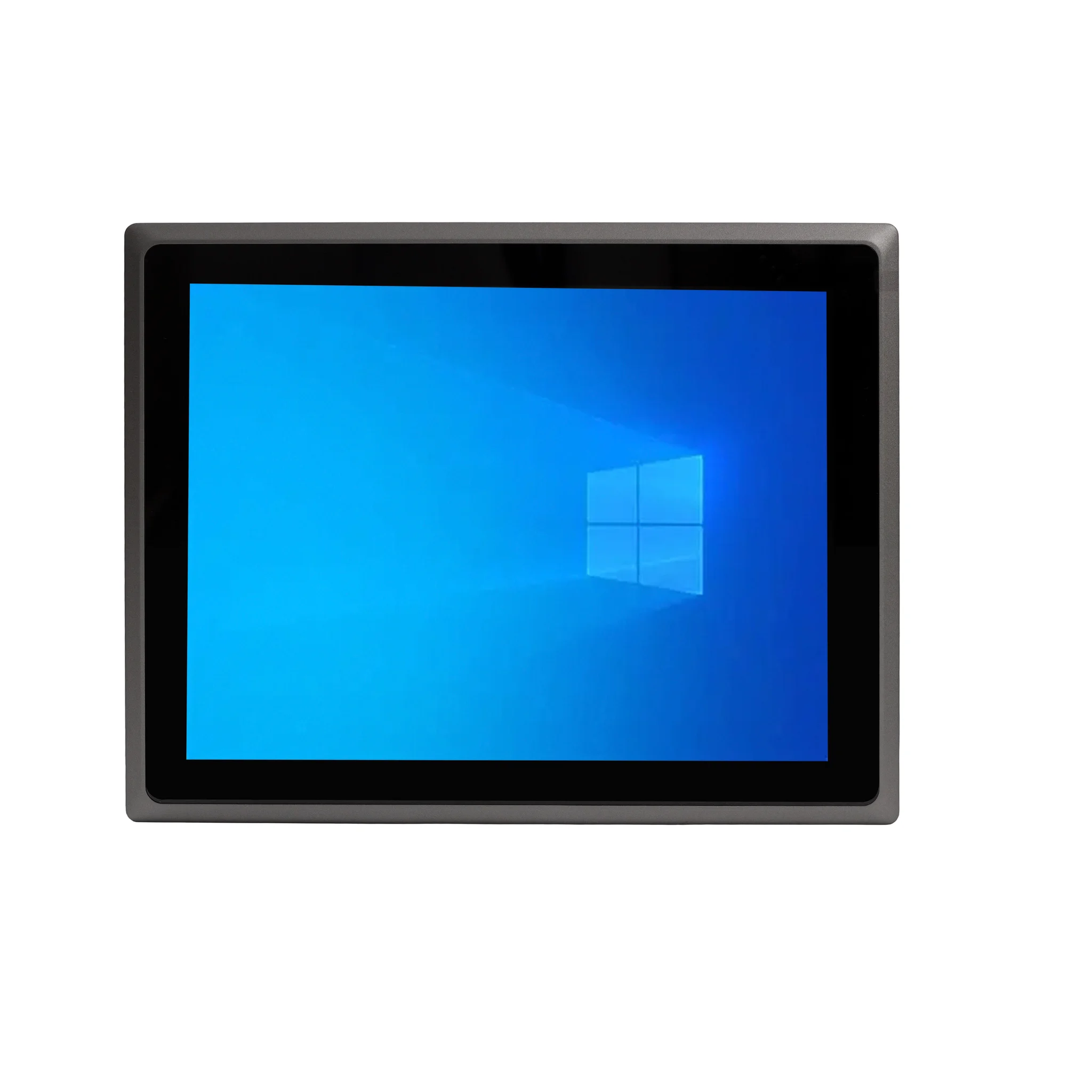
What "Wireless External Display" Means for a Computer
A wireless external display setup lets a computer send video and audio to a separate screen without a physical cable between the two. Instead of routing a video signal through HDMI, DisplayPort or VGA, the system encodes the display stream and transmits it over a wireless link — typically Wi-Fi (Miracast, WiDi, AirPlay or vendor-specific casting protocols) or a dedicated wireless display adapter that pairs a transmitter with a receiver plugged into the monitor's HDMI port. The receiving screen decodes the stream and renders it as a normal second display.
The practical requirement is not a special graphics chip but a combination of a capable integrated GPU, a Wi-Fi radio that supports the relevant standard, and driver/OS support for the casting protocol. Intel integrated graphics in Celeron, N-series and Core i3/i5 processors all include hardware video encode/decode engines, which is what makes low-latency wireless mirroring and extended desktop modes possible without loading the CPU. On Windows, Miracast support depends on the Wi-Fi driver; on Linux, implementations such as MiracleCast or vendor tools cover similar ground, though support varies by distribution.
Wireless vs Cabled External Displays
| Aspect | Wired (HDMI/DisplayPort) | Wireless (Miracast / adapter) |
|---|---|---|
| Latency | Very low, suitable for video and CAD | Low to moderate; fine for presentations, signage, dashboards |
| Maximum resolution | Native panel resolution at full refresh | Typically up to 1080p, sometimes higher with dedicated adapters |
| Cable runs | Limited by cable length | Limited by Wi-Fi range and interference |
| Best for | Fixed desks, control rooms | Meeting rooms, retail displays, kiosks, cable-free installations |
| Reliability | Highest | Depends on RF environment |
For most industrial, commercial and office deployments, wireless display is used as a convenience layer rather than a replacement for a cabled primary monitor. A common pattern is a cabled primary screen plus one or more wireless secondary displays for meeting rooms, digital signage or operator stations where running cable is impractical.
Where Wireless External Displays Are Used
-
Meeting and conference rooms — a mini PC or all-in-one on the table casts to a wall-mounted screen, so presenters can share without hunting for cables.
-
Retail and digital signage — content is pushed to displays mounted in locations where concealing a video cable is difficult or expensive.
-
Healthcare and clinical carts — a compact system on a mobile cart sends the image to a wall display when the cart is docked.
-
Education and training rooms — instructors mirror a small screen to a projector or large panel.
-
Industrial control rooms — operators view dashboards on a large panel while the computing unit stays in a protected enclosure away from dust, heat or washdown areas.
Choosing Hardware for Wireless Display
Look for a system with a modern Intel processor (the integrated GPU handles H.264/H.265 encode), a Wi-Fi module with current drivers, and enough RAM to run the casting stack alongside your application. Dual-band Wi-Fi is strongly recommended because the 5 GHz band offers far more headroom and less interference than 2.4 GHz, which directly affects image stability. If the deployment is mission-critical, many integrators pair a wireless secondary display with a cabled primary display so the system always has a guaranteed output path.
Thinvent Products for Wireless External Display Setups
Thinvent's range of mini PCs, all-in-one PCs, thin clients and industrial computers is built around Intel processors with integrated graphics and dual-band Wi-Fi, making them well suited to wireless display workflows. The Uno all-in-one series pairs a 21.5" panel with Intel N-series silicon, 16 GB DDR4 memory and fast SSD storage — useful when a local screen is needed alongside a wirelessly cast second display. For headless or space-constrained installations, Thinvent mini PCs and industrial computers can drive a wireless external display while sitting inside a cabinet, on a DIN rail or behind a panel, keeping the computing hardware away from the viewing area. Fanless options suit dusty, hot or vibration-prone environments where a cabled monitor run would be fragile.