How to Start a Computer: A Step-by-Step Guide
The process of starting a computer, often called "booting," involves providing power and initiating the operating system. For modern industrial and mini PCs, the procedure is straightforward but requires a few key steps to ensure a successful startup. This guide covers the universal process for powering on and booting a computer system.
Essential Steps for Startup
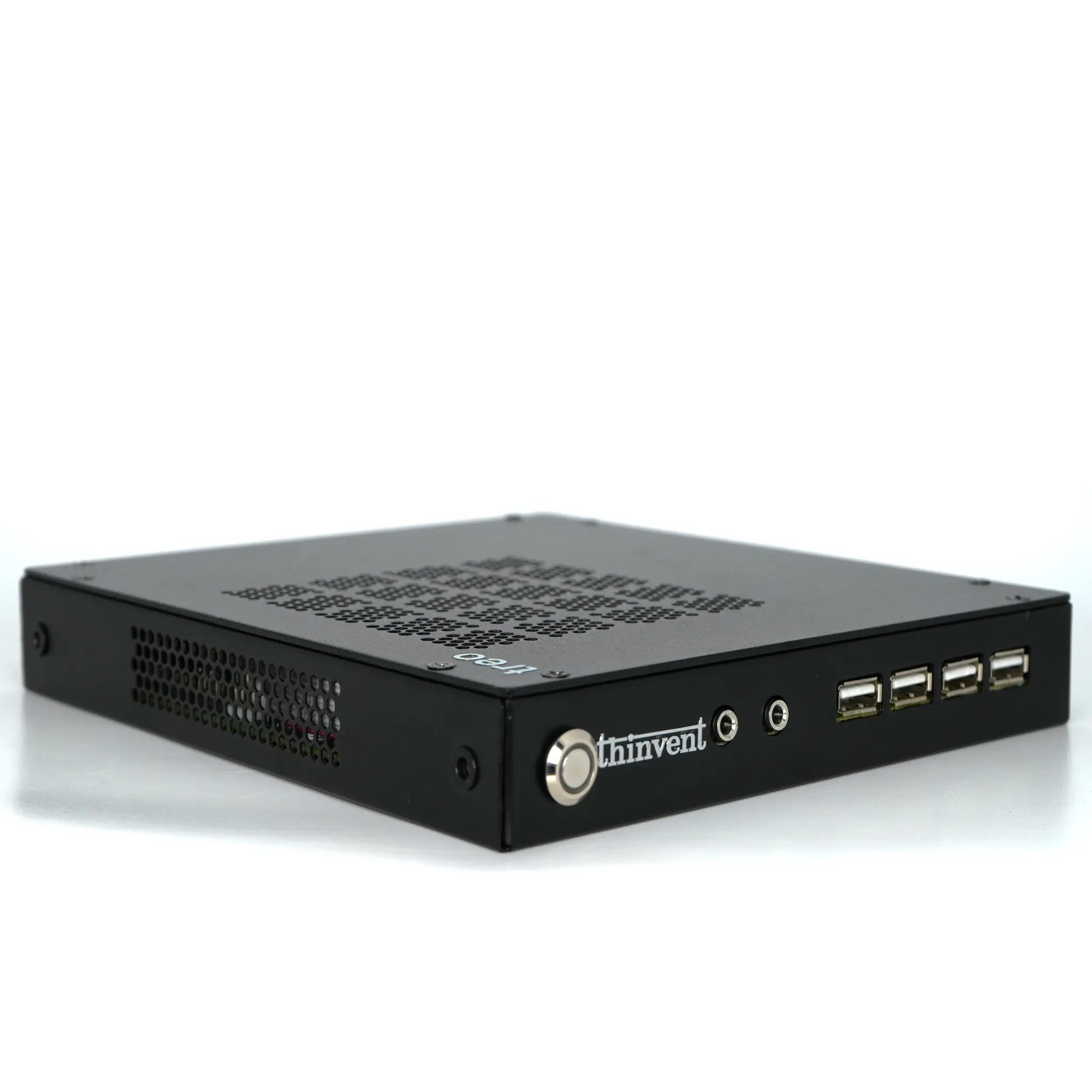
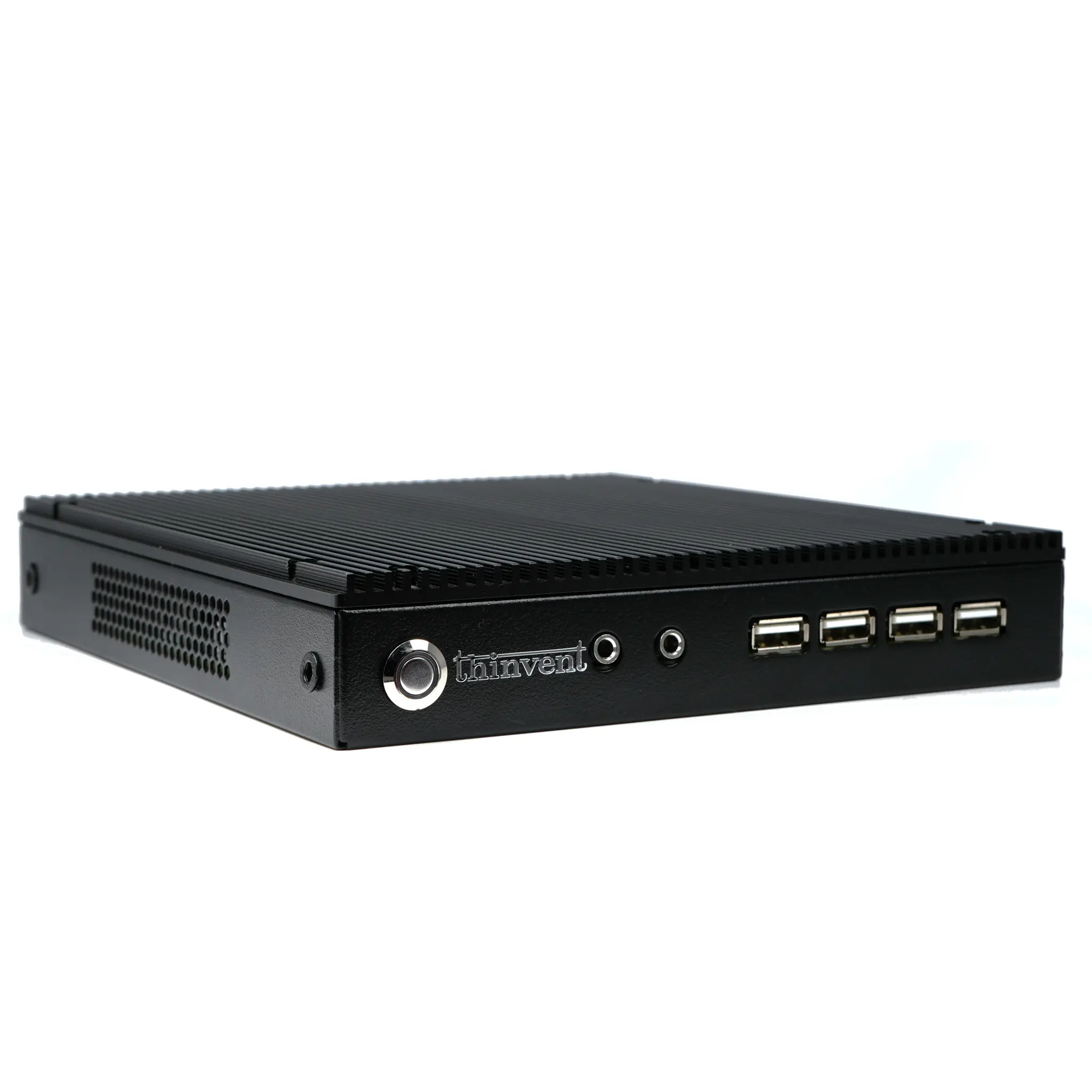
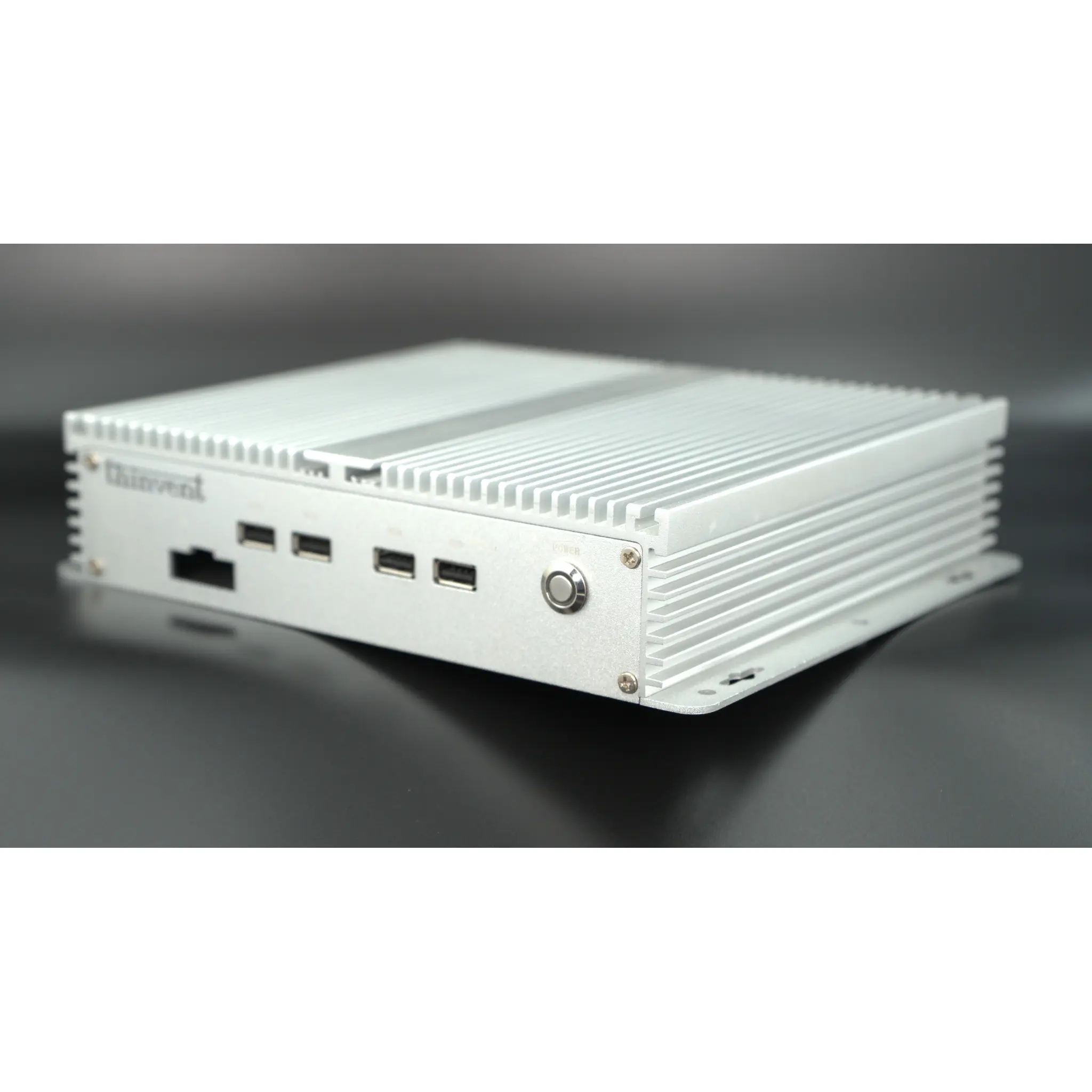
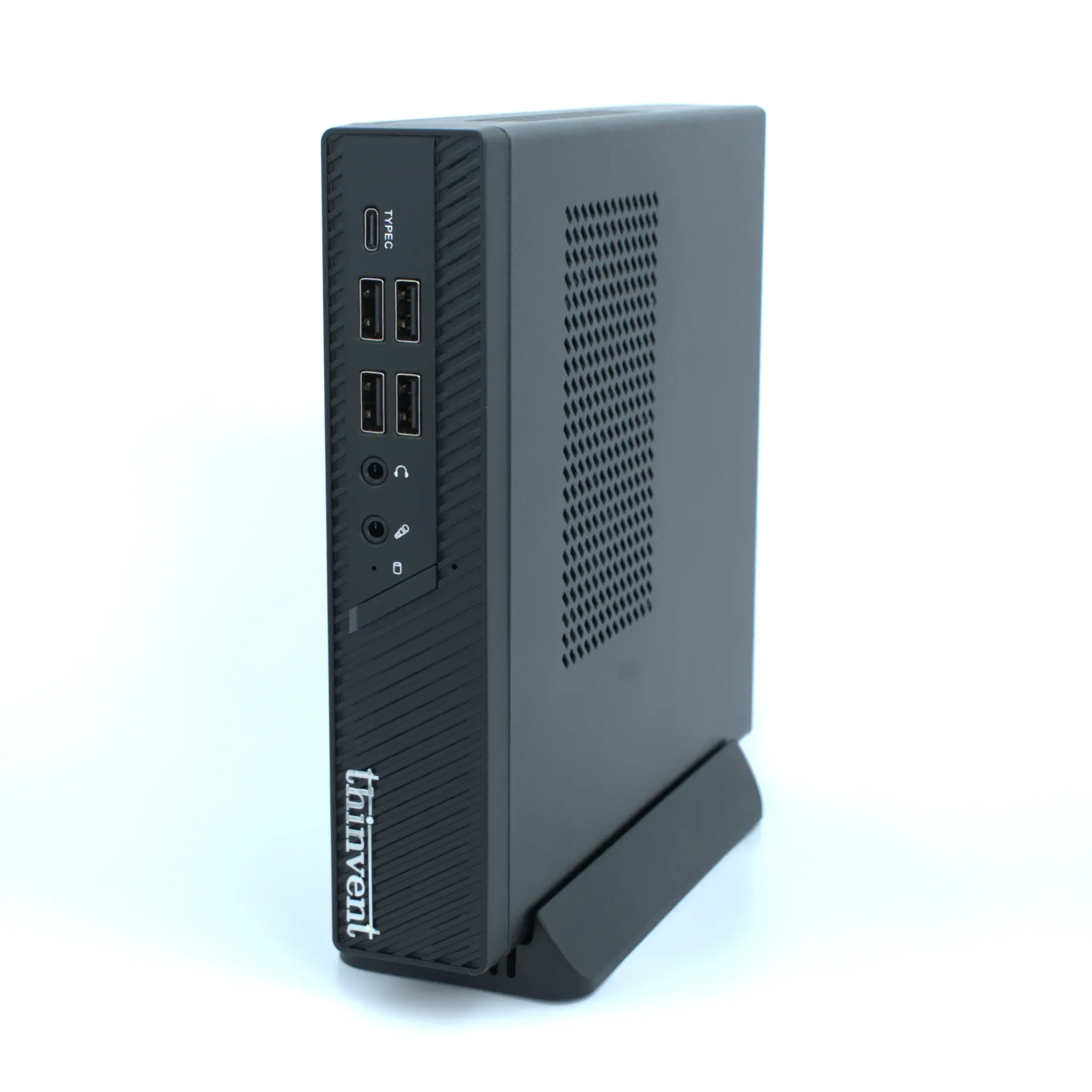
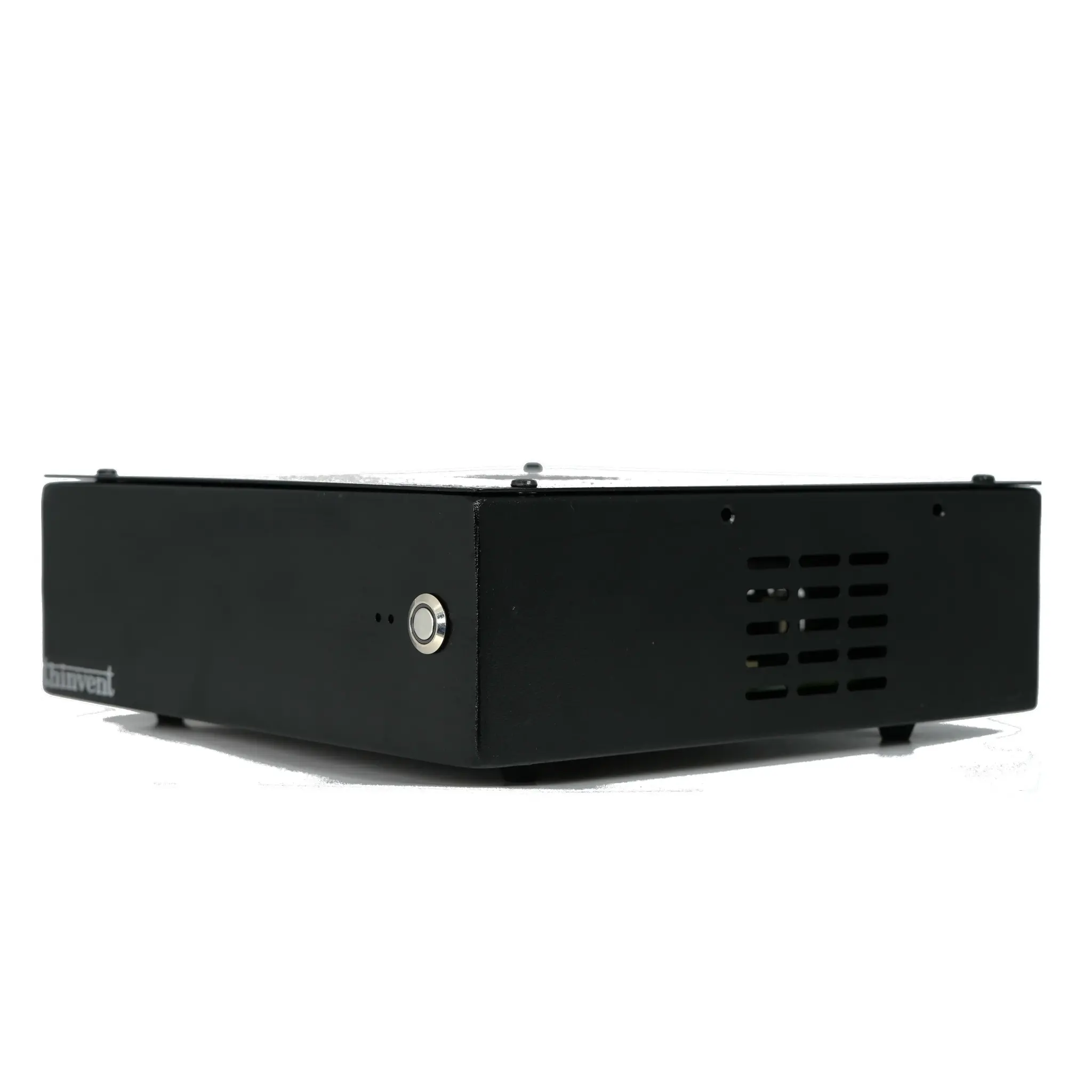
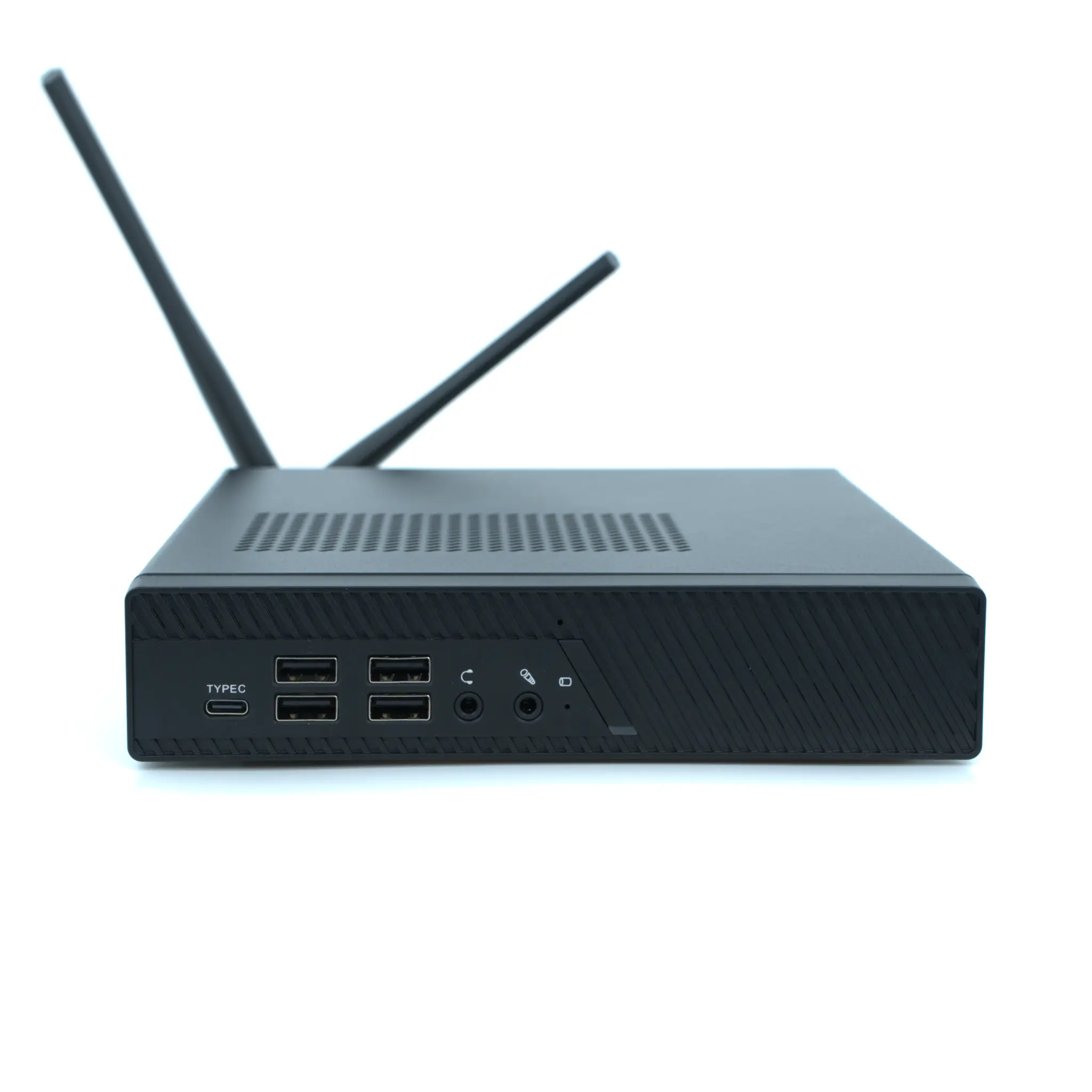
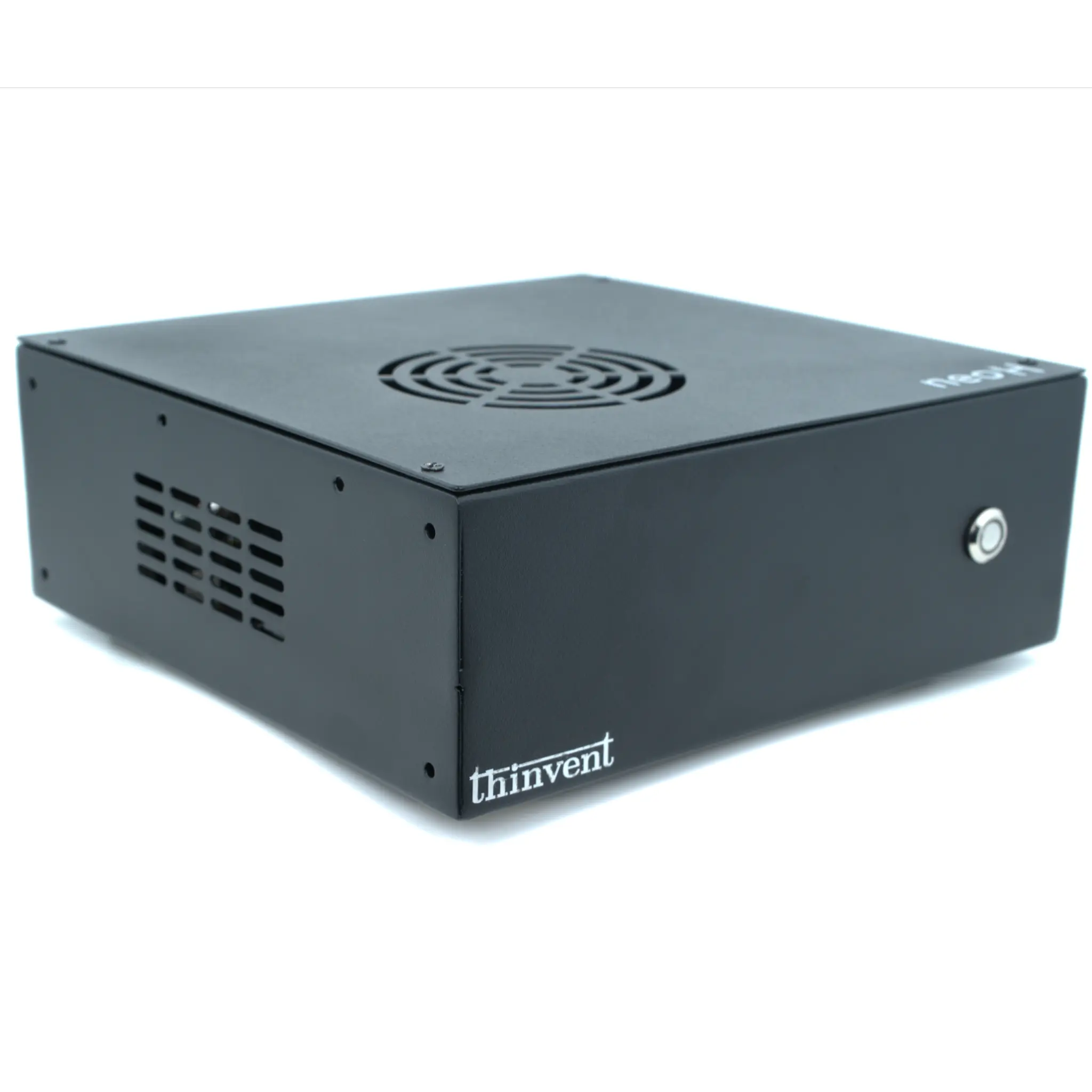
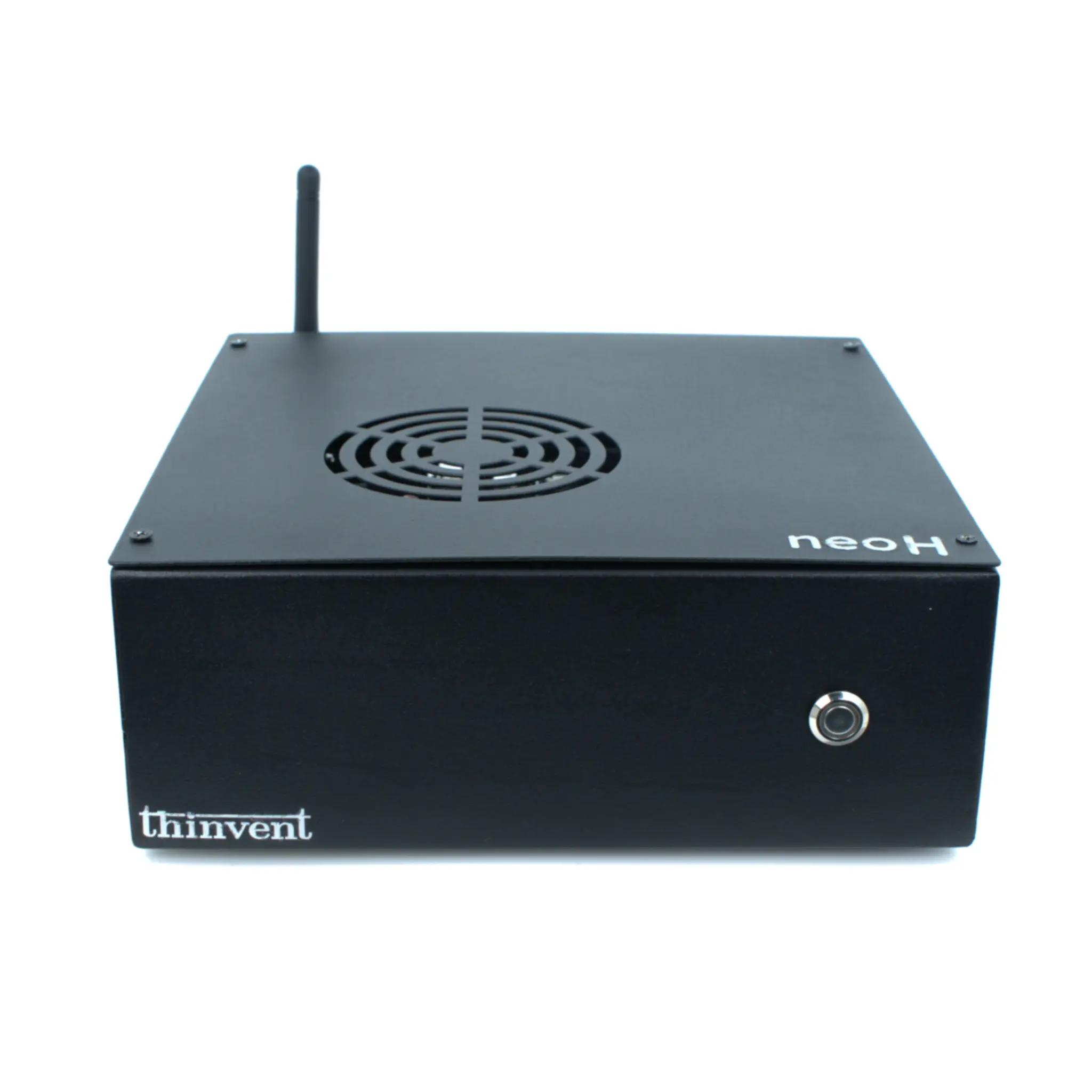
First, ensure all necessary components are connected. This includes the power adapter, a display (monitor or screen) via HDMI or other video port, and input devices like a keyboard and mouse. For industrial PCs, verify that any required peripheral connections for your application are secure. Next, locate the power button, which is typically a physical button on the front or side of the chassis. Press this button once firmly. You should see indicator lights (LEDs) turn on, and the system's cooling fans (if present) may start. The display will then show the manufacturer's logo or boot screen as the system performs a Power-On Self-Test (POST).
Understanding the Boot Process
After POST, the system's firmware (UEFI or BIOS) initializes the hardware and searches for a bootable device. This is typically an internal Solid State Drive (SSD) containing the operating system. The boot sequence loads the OS kernel into the system's RAM (Random Access Memory), which then takes over control. For systems without a pre-installed OS, you may see a prompt to install an operating system or enter the firmware setup. The entire process from pressing the power button to a usable desktop usually takes under a minute for systems with fast SSDs and modern processors.
Common Issues and Troubleshooting
If the computer does not start, check the basics: Is the power cable firmly connected at both ends (wall outlet and computer)? Is the power supply's voltage switch (if applicable) set correctly for your region? Ensure the display is powered on and set to the correct input source (e.g., HDMI 1). If the system powers on but does not boot to an OS, it may indicate a storage drive issue or a corrupted operating system, requiring technical support or OS reinstallation.
Thinvent Industrial Computers: Reliable Startup and Operation
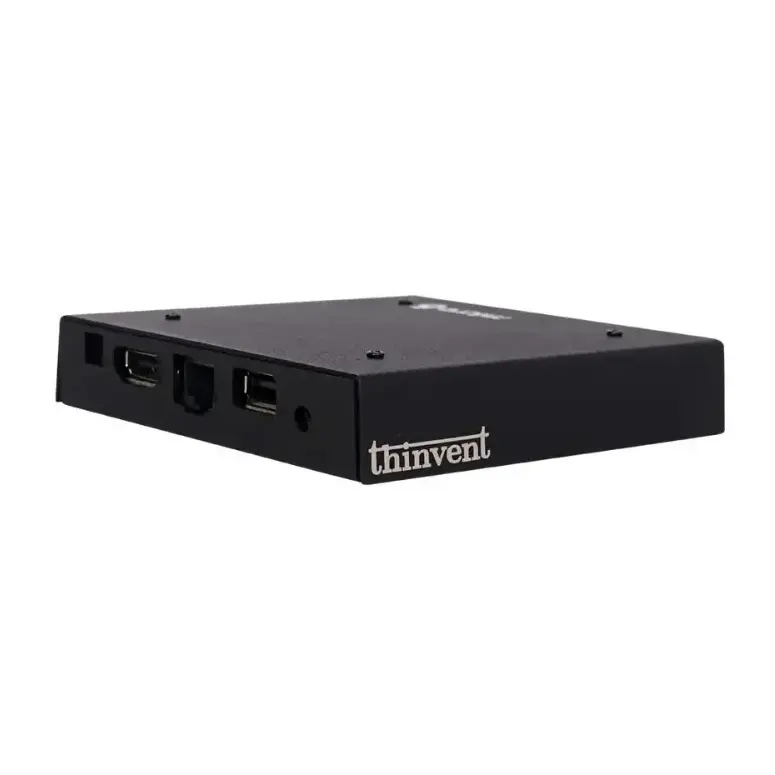
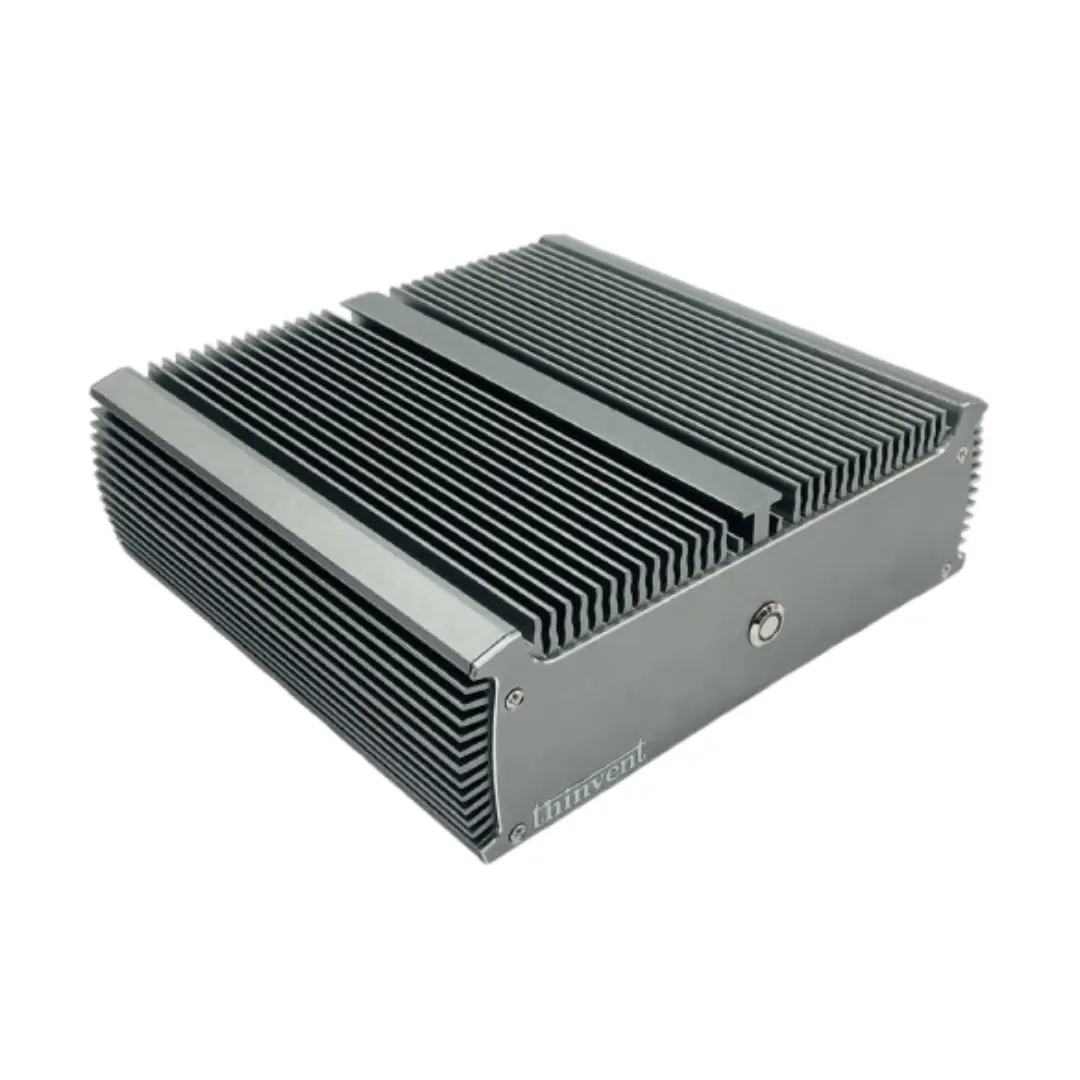
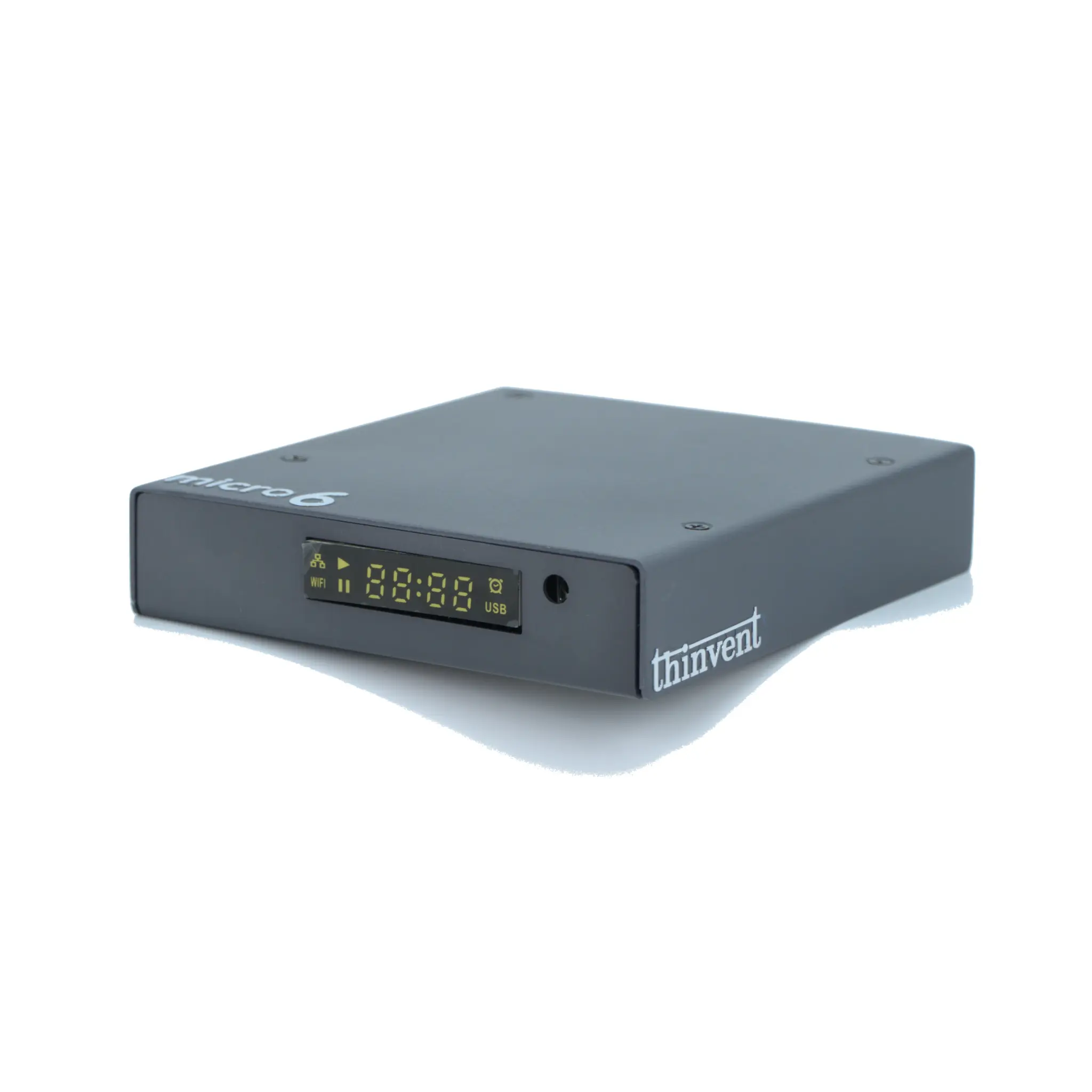
Thinvent designs its industrial PCs and mini computers for dependable startup in demanding environments. Our systems feature robust power circuitry and high-quality components to ensure consistent boot cycles. The Thinvent Aero Mini PC, for example, utilizes efficient Intel processors and reliable DDR4 RAM for fast, stable system initialization. Available with multiple operating system options including Windows 11 Pro, Ubuntu Linux, or a lightweight embedded OS, Thinvent computers are pre-configured for seamless out-of-the-box operation in applications like digital signage, kiosks, and industrial automation, where reliable startup is critical.