How to Choose a Computer: A Practical Buying Guide
Buying a computer starts with one question: what will the machine actually do every day? The answer determines almost every specification that follows. A system built for a reception desk running a browser and a booking application has very different requirements from one running a factory production line, an inventory database, or a medical imaging viewer. Before comparing processor models or storage sizes, define the workload, the environment it will run in, and how long the machine needs to stay in service. Those three factors narrow the field faster than any spec sheet.
Understanding the Key Specifications
Processor (CPU). The processor sets the ceiling for responsiveness. Intel's entry-level Celeron and N-series chips (such as N95, N100 and N150) handle kiosks, digital signage, point-of-sale and basic office work efficiently and at low power. Moving up, Core i3, i5 and i7 parts deliver progressively more cores, cache and clock speed for multitasking, virtualisation, data processing and heavier business applications. Generation matters too: a 12th, 13th or 14th generation Core processor brings newer architecture and better efficiency than an older chip at the same tier.
Memory (RAM). 4 GB is the practical floor for lightweight Linux or browser-based tasks. 8 GB is the comfortable baseline for Windows 11 business use. 16 GB suits multitasking, virtual machines and larger datasets, while 32 GB and above are for engineering, analytics and heavy virtualisation.
Storage. Solid-state drives (SSD) are standard. 128 GB covers thin-client and kiosk roles, 256 GB suits general office use, and 512 GB to 1 TB is appropriate where local data, logs or media are stored on the device.
Operating system. Windows 11 Pro is the common choice for business fleets and remote management; Ubuntu Linux 24.04 LTS or an embedded Linux build suits appliances and controlled deployments; FreeDOS or no OS is preferred when an organisation deploys its own image.
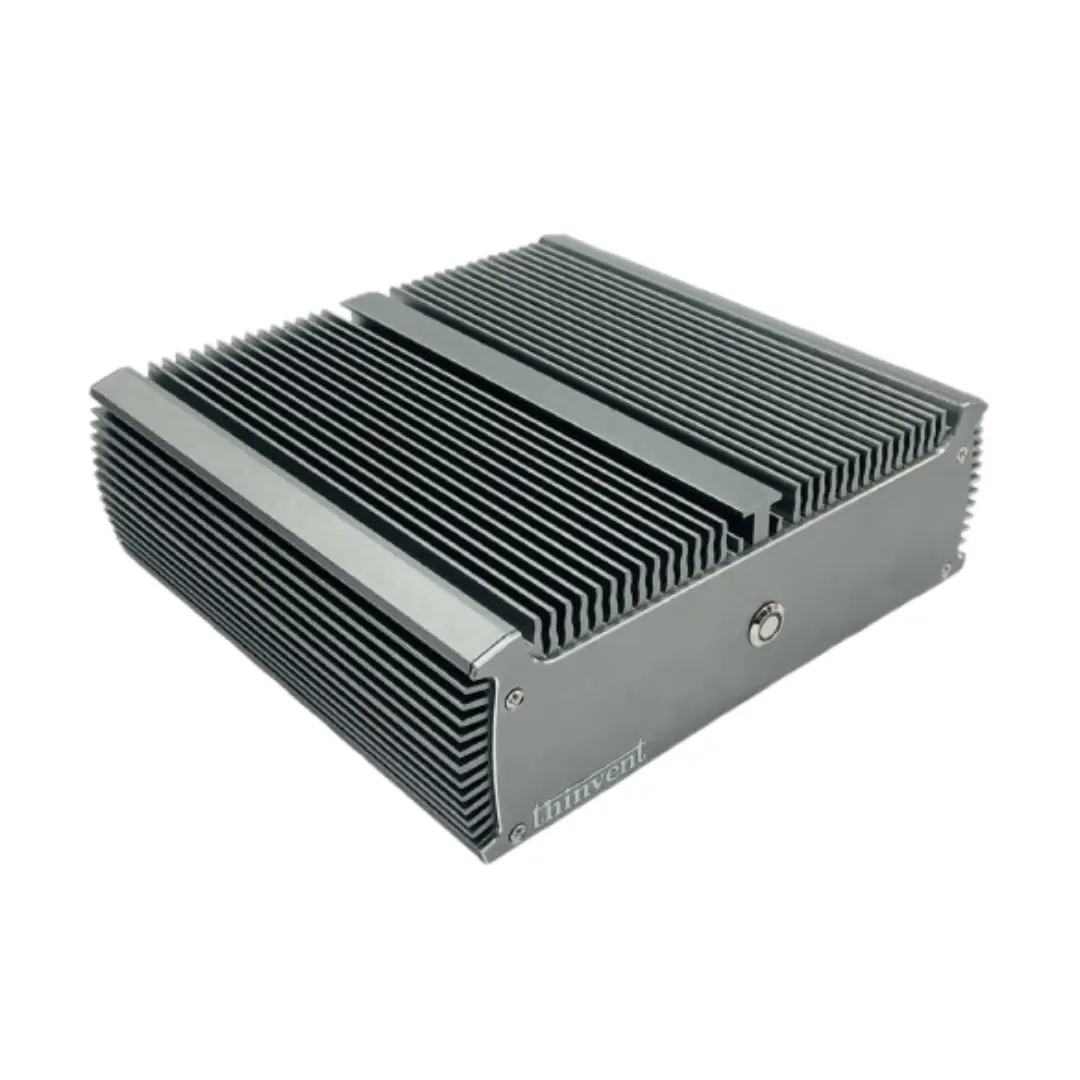
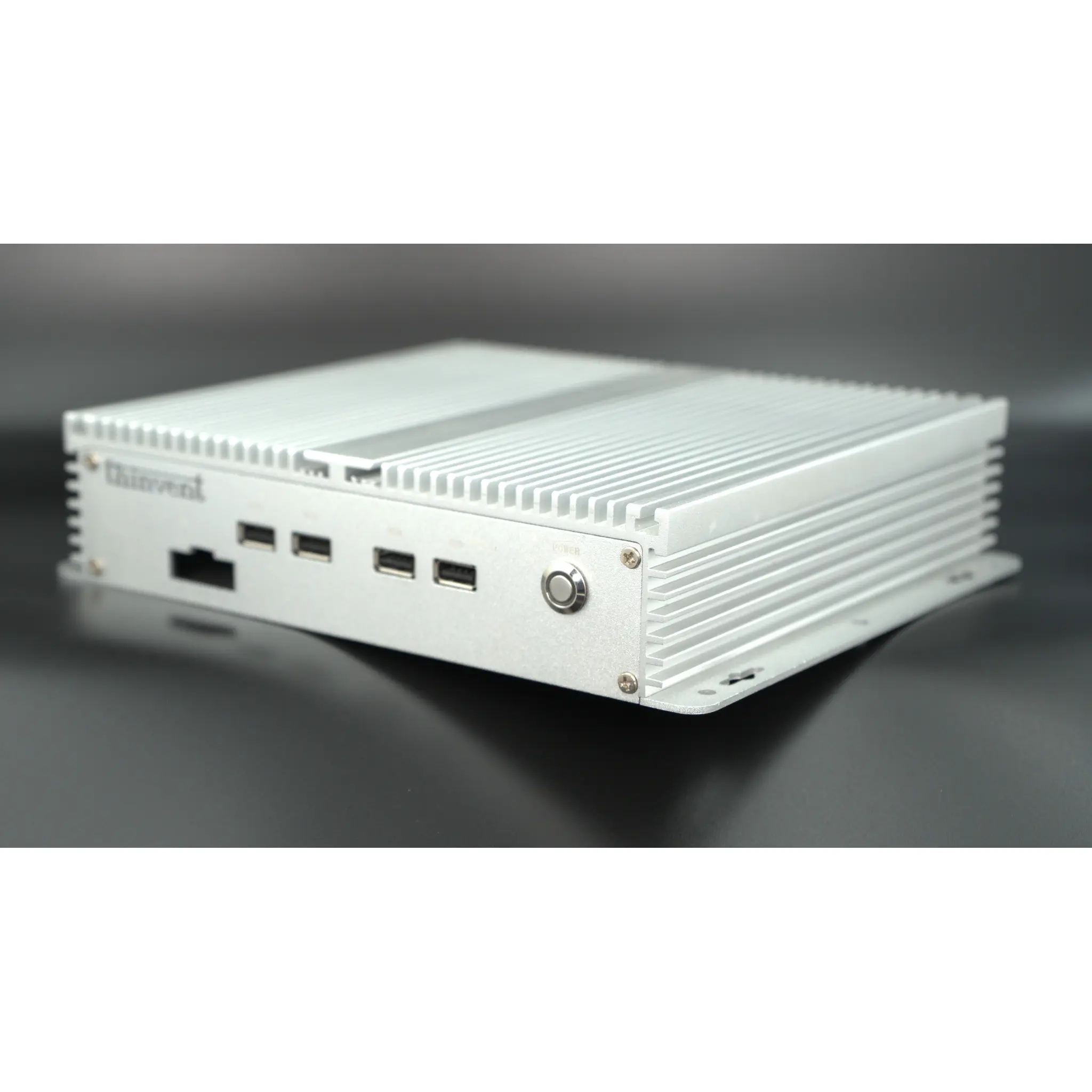
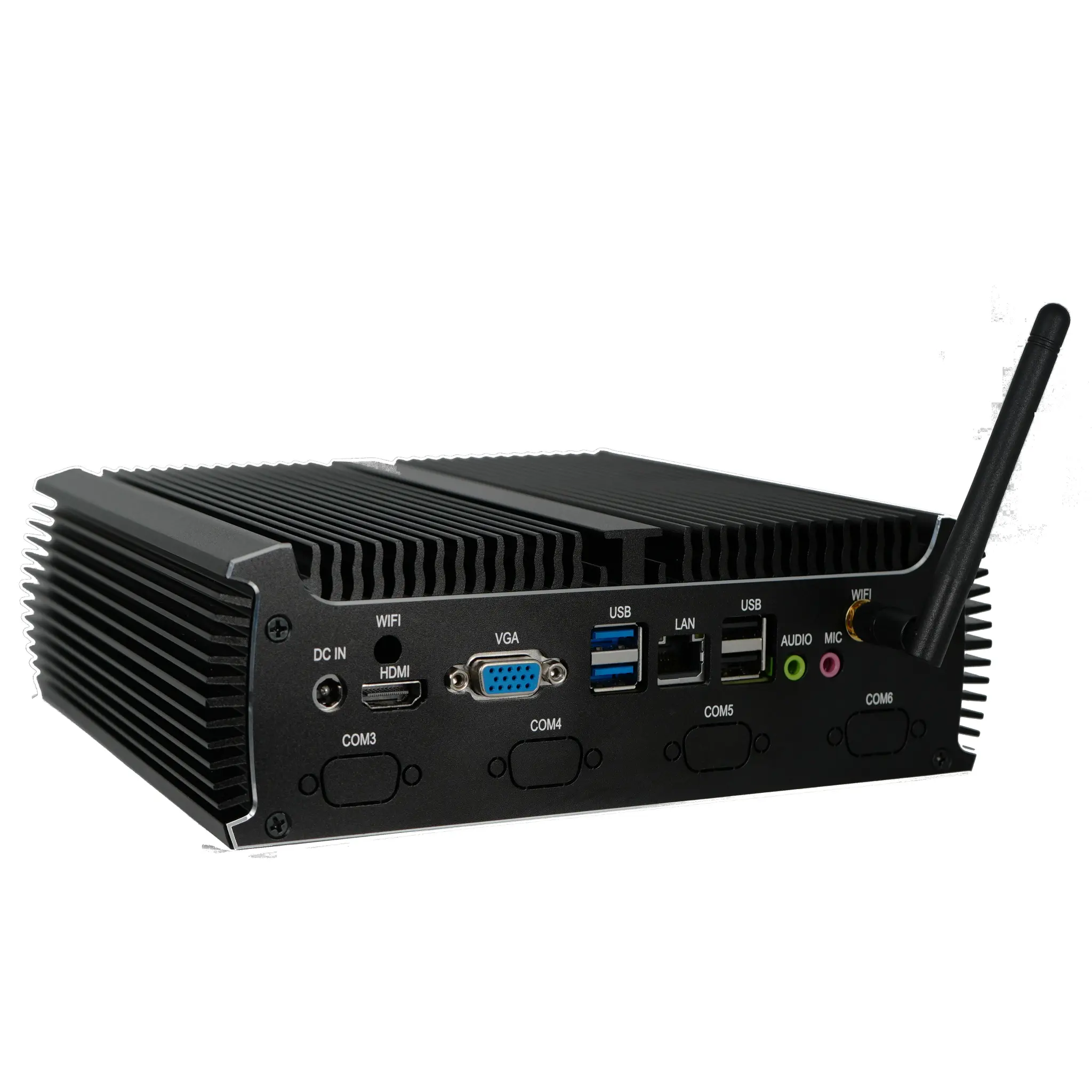
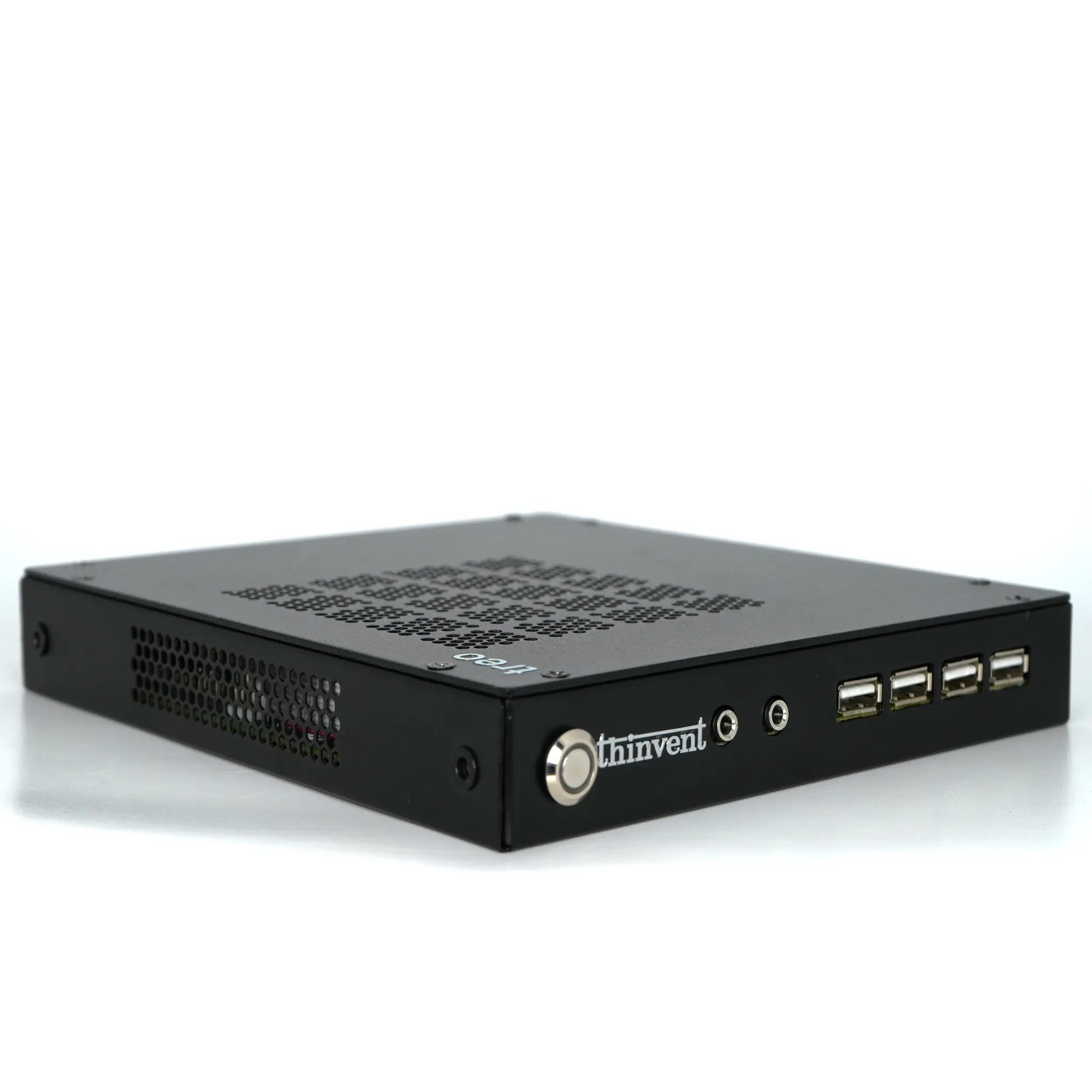
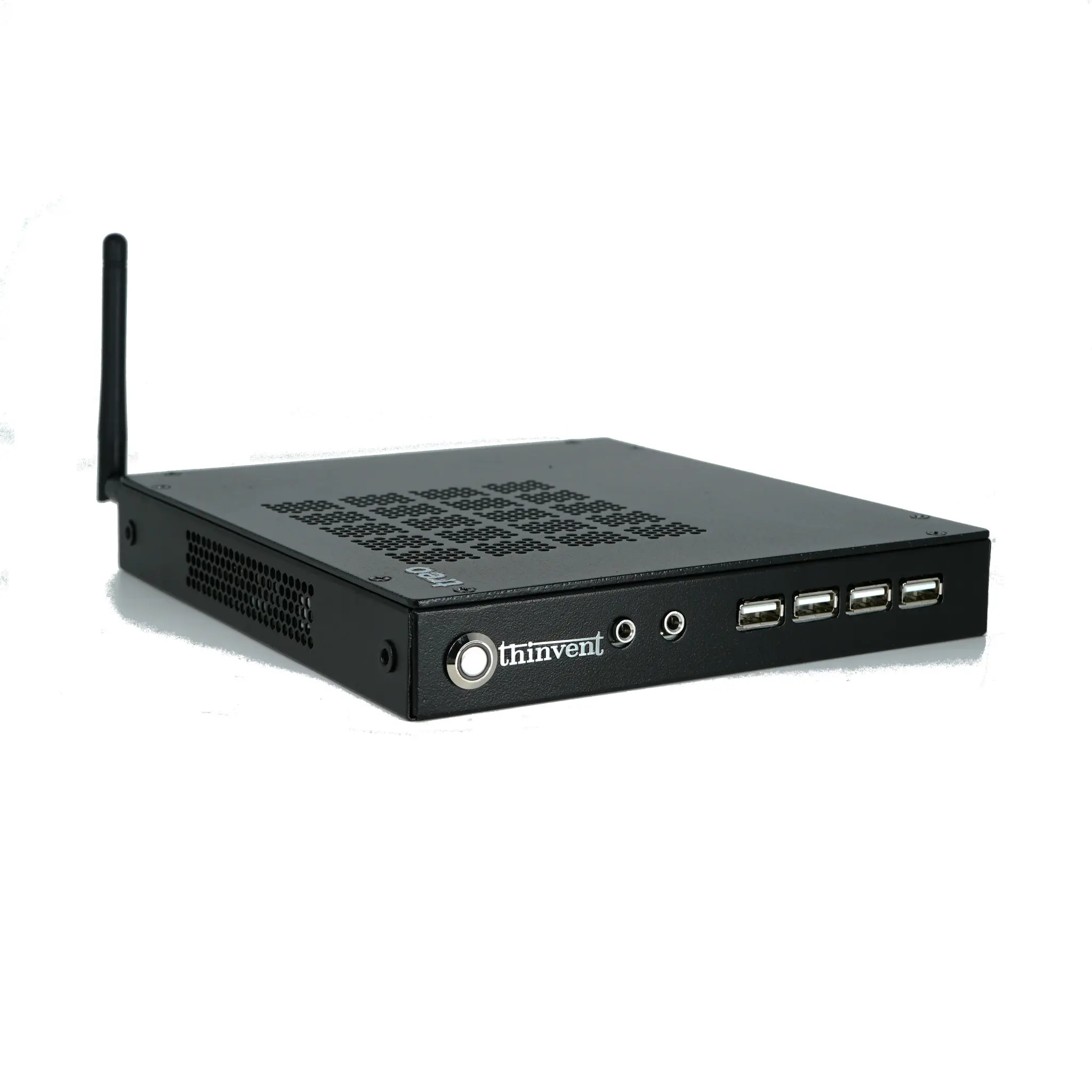
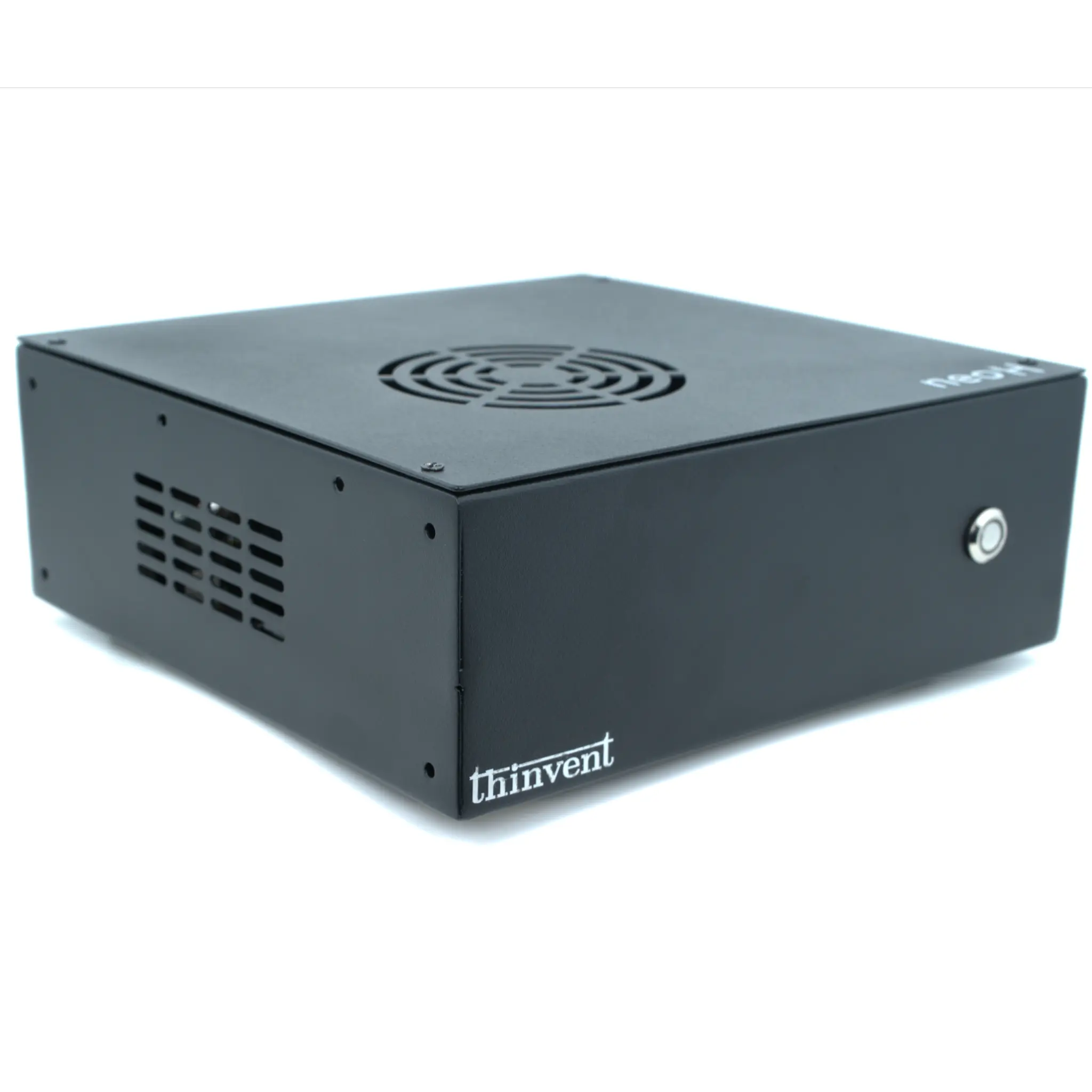
Form factor and environment. Mini PCs save desk space, thin clients centralise management and reduce cost per seat, all-in-one PCs simplify cabling, and industrial PCs add wide-temperature tolerance, fanless cooling, vibration resistance and legacy I/O such as serial ports for machinery and controllers.
| Use Case | Suggested CPU | RAM | Storage | Typical Form Factor |
|---|---|---|---|---|
| Kiosk, signage, basic POS | Intel N95 / N100 / J4125 | 4–8 GB | 128 GB | Mini PC |
| Office productivity, VDI seat | Intel Core i3 (12th–13th gen) | 8–16 GB | 256–512 GB | Mini PC / Thin Client |
| Multitasking, light virtualisation | Intel Core i5 (12th gen and above) | 16–32 GB | 512 GB–1 TB | Mini PC / Industrial PC |
| Factory floor, machine control | Intel Core i3 / i5 | 16–32 GB | 512 GB–1 TB | Industrial PC |
| Front-desk all-in-one | Intel N-series or Core i3 | 8–16 GB | 256 GB | All-in-One |
Use Cases and Applications
Thin clients remain the most cost-effective choice where work happens in a browser, a virtual desktop or a centralised server — call centres, clinics, banks and back-office teams. Mini PCs fit behind a monitor for reception desks, retail counters and meeting rooms. All-in-one systems reduce cable clutter in customer-facing areas such as hotel front desks and consultation rooms. Industrial PCs take over where conditions are rough: production lines, warehouses, outdoor enclosures and anywhere dust, heat, vibration or 24/7 operation would shorten the life of a consumer desktop.
Compatibility is often the deciding factor in commercial deployments. Check for the serial (DB9) ports