Installing a Thin Client for VDI
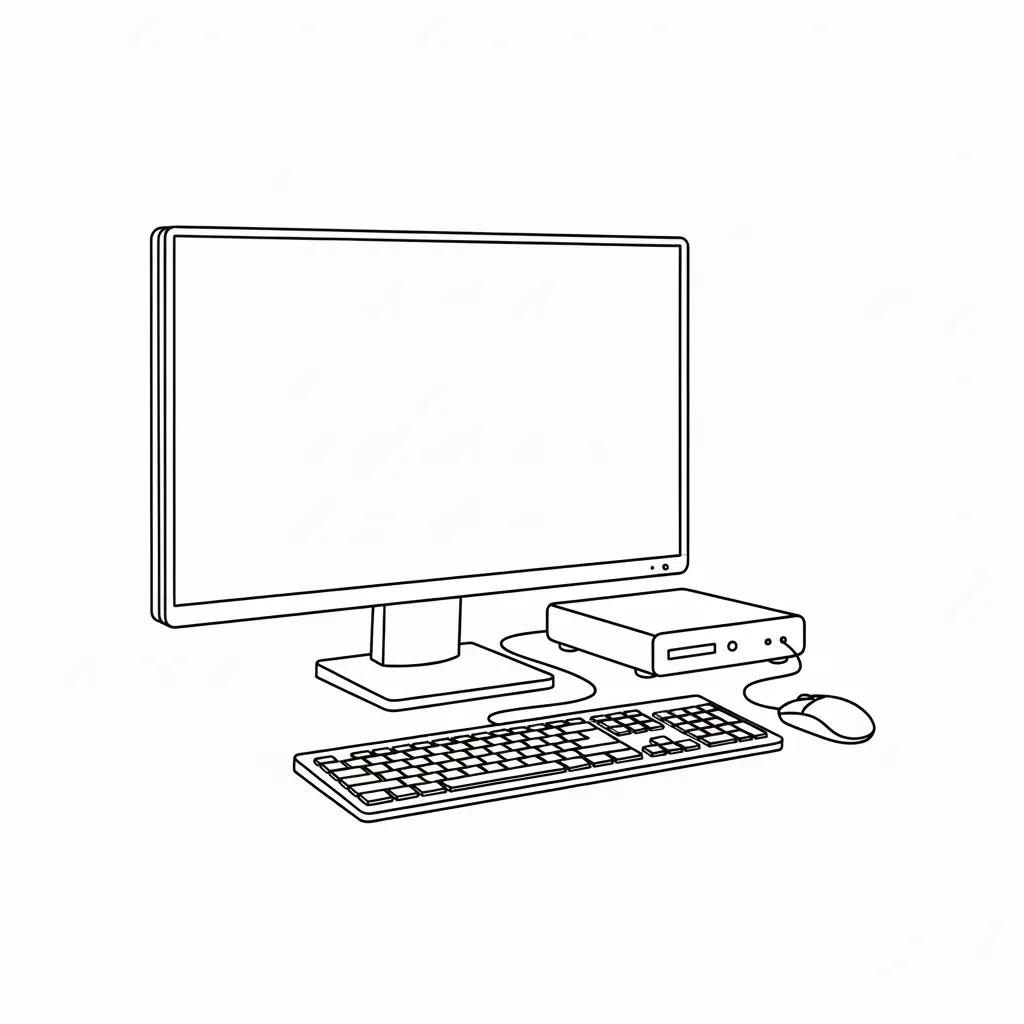
A thin client for VDI runs a remote desktop session from a virtual desktop server. The client does not store user data or run applications locally. Installation covers physical setup, network configuration, and connection to the VDI broker.
The query refers to a "Green VDI 120 Ultra" thin client. The product range on this page does not include a model with that name. The Thinvent range on this page consists of the Micro 5R and the Neo S series.
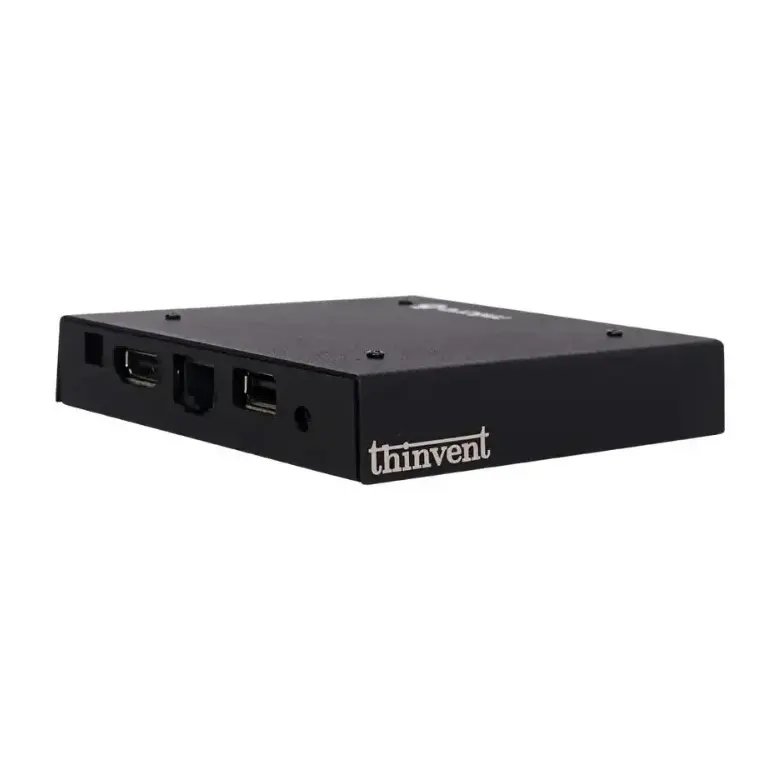
Thinvent Thin Clients on This Page
The Thinvent Micro 5R uses an ARM Cortex A53 processor with 4 cores at up to 2.0 GHz. It has 2 GB RAM and 16 GB eMMC storage. It runs Thinux embedded Linux and includes WiFi 6 and Bluetooth. It has one HDMI 2.0 output and one speaker output.
The Thinvent Neo S series uses an Intel Celeron J1900 processor with 4 cores at up to 2.4 GHz and 2 MB cache. Models ship with 4 GB or 8 GB DDR3 RAM. Storage options include 32 GB MLC SSD, 128 GB SSD, and 256 GB SSD. Operating system options include Windows 11 Pro, Ubuntu Linux, Thinux embedded Linux, DOS, or no OS. Neo S models have no WiFi.
| Feature | Micro 5R | Neo S |
|---|---|---|
| Processor | ARM Cortex A53, 4 cores, 2.0 GHz | Intel Celeron J1900, 4 cores, 2.4 GHz |
| RAM | 2 GB | 4 GB or 8 GB DDR3 |
| Storage | 16 GB eMMC | 32 GB, 128 GB or 256 GB SSD |
| WiFi | WiFi 6 | None |
| Operating system | Thinux embedded Linux | Windows 11 Pro, Ubuntu, Thinux, DOS, or none |
Installation Steps
- Place the thin client on a flat, ventilated surface. Keep it clear of heat sources.
- Connect a display to the HDMI port. On Neo S models, use the port on the model.
- Connect a USB keyboard and mouse.
- Connect the network cable (Neo S) or enable WiFi (Micro 5R).
- Connect the power adapter. Use the adapter supplied with the model: 5V 2A for the Micro 5R, or 19V 1.3A or 19V 3A for Neo S.
- Power on the device. Confirm the operating system boots.
- Set the network address (DHCP or static) and enter the VDI broker or connection server address in the client's connection settings.
- Sign in to the VDI session and confirm the remote desktop loads.
Models without an operating system (Neo S, "Without OS") need a client OS or firmware image installed before step 7.
Use Cases
Thin clients suit call centers, branch offices, kiosks, and education labs. Central management reduces the number of devices that need local updates. The Micro 5R suits low-power deployments. The Neo S suits standard VDI desktops that need Windows or Linux.