What Does "My Dream PC" Actually Mean?
A dream PC is not one single machine — it is the computer that fits your workload, your environment and your budget without forcing compromises you will regret later. For a gamer or video editor, that may mean a high-clock processor, a discrete GPU and a fast NVMe drive. For someone running a point-of-sale terminal, a factory HMI panel, a digital signage wall or a 24×7 kiosk, the dream machine looks very different: it must run silently, tolerate dust and heat, boot reliably every morning, and keep running for years without a fan failing or a hard drive clicking to a halt.
The smart way to design your ideal PC is to work through five questions in order: Where will it live? What software must it run? How much data does it store locally? What has to plug into it? And how long must it last? Answer those and the specification almost writes itself.
Step 1: Choose the Right Form Factor
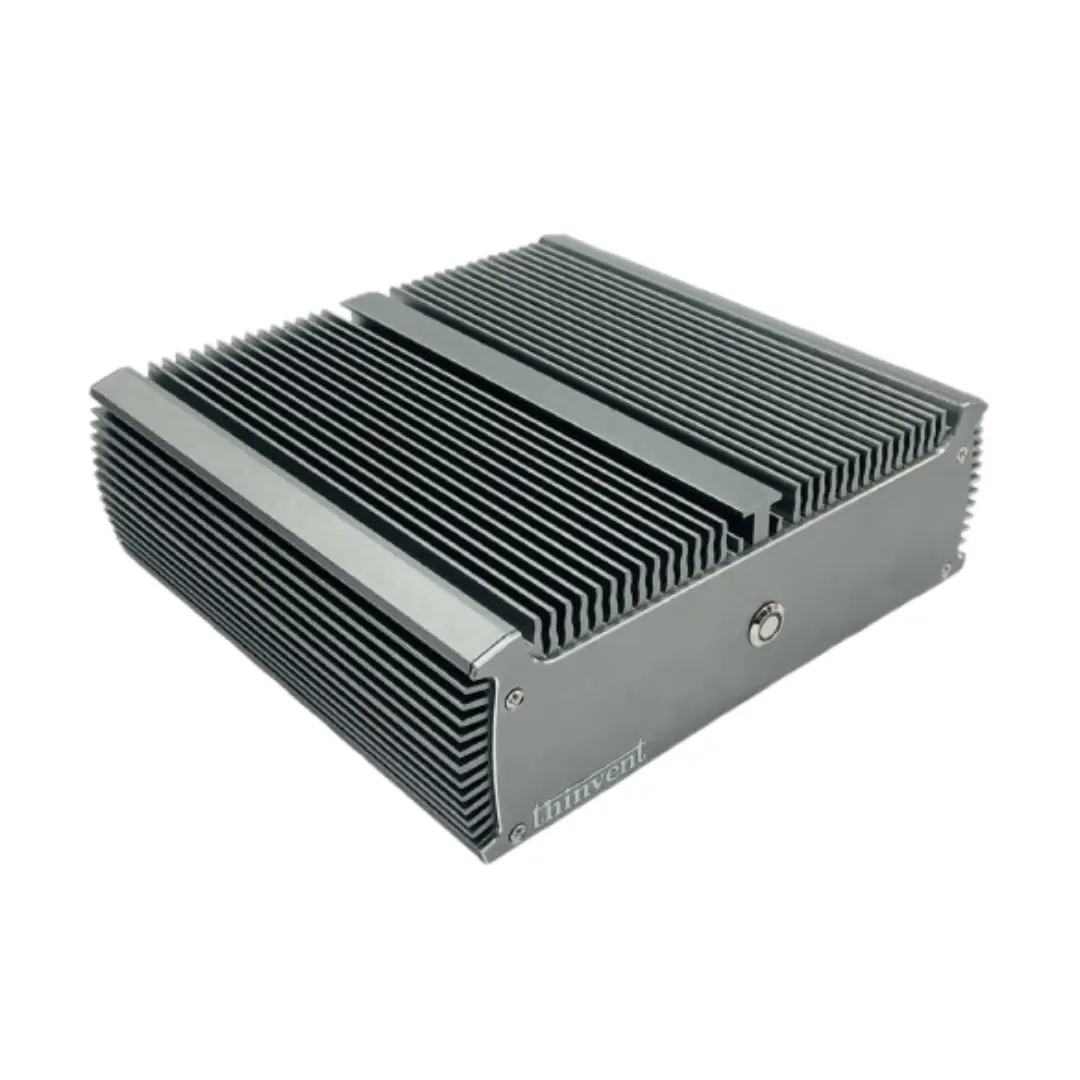
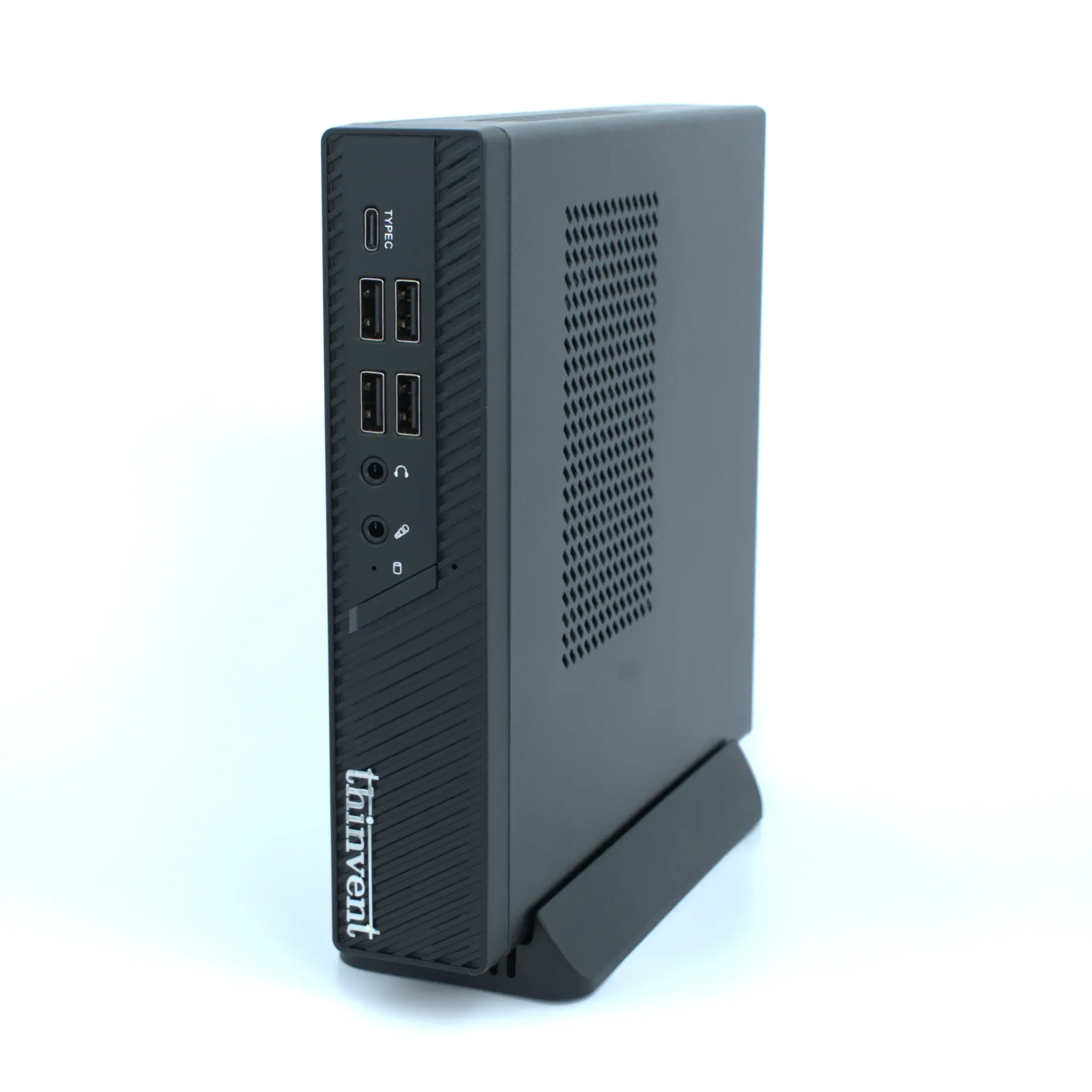
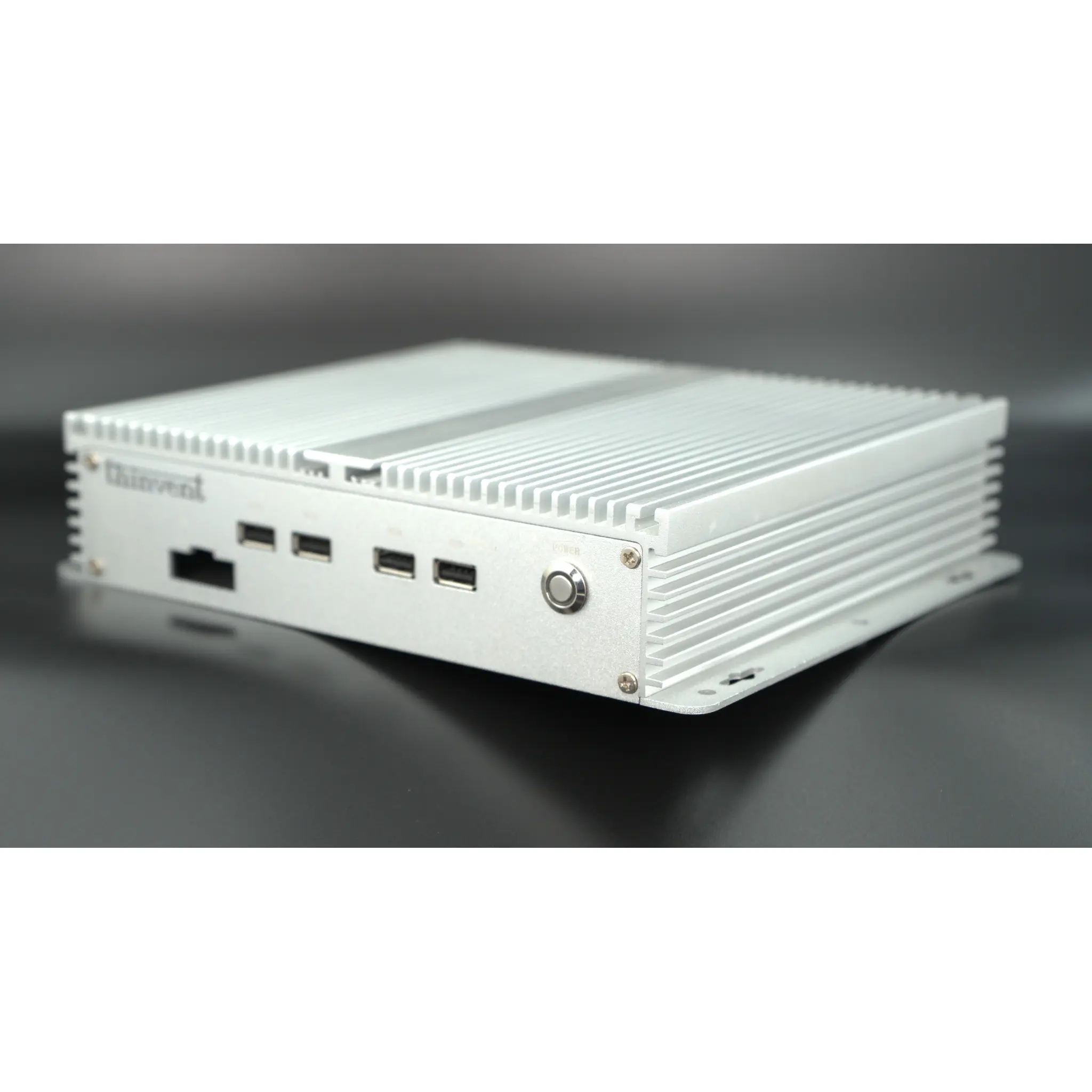
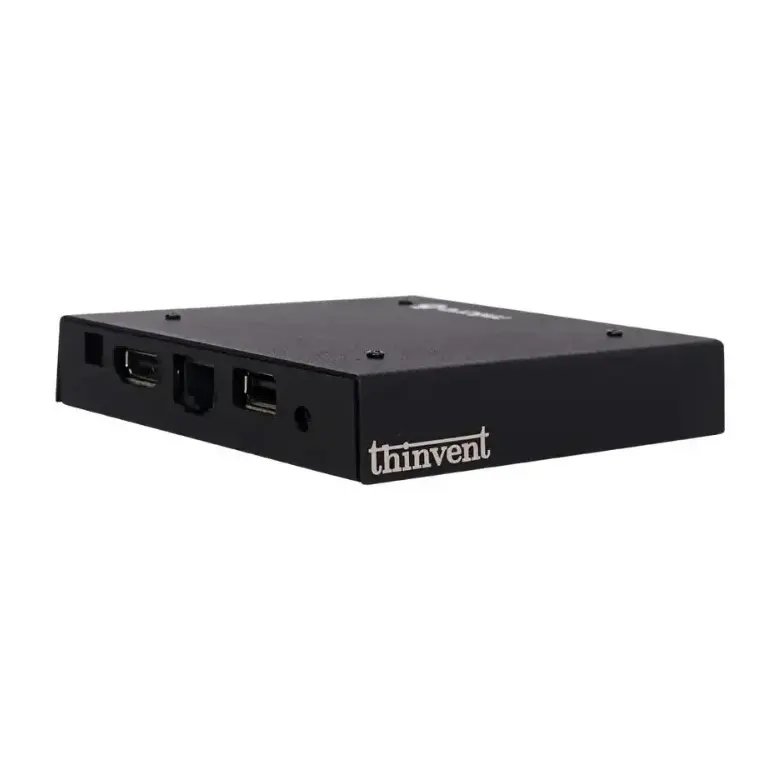
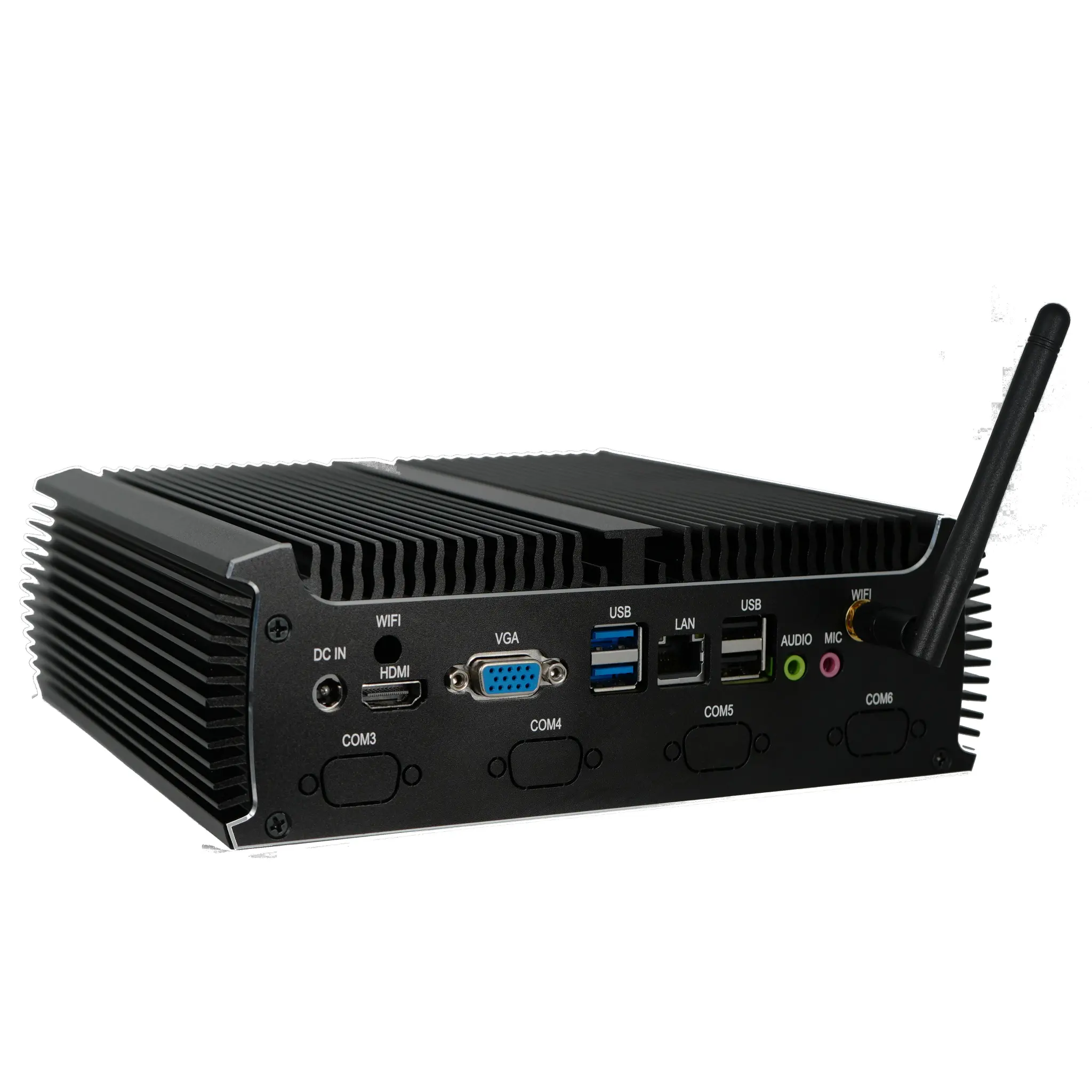
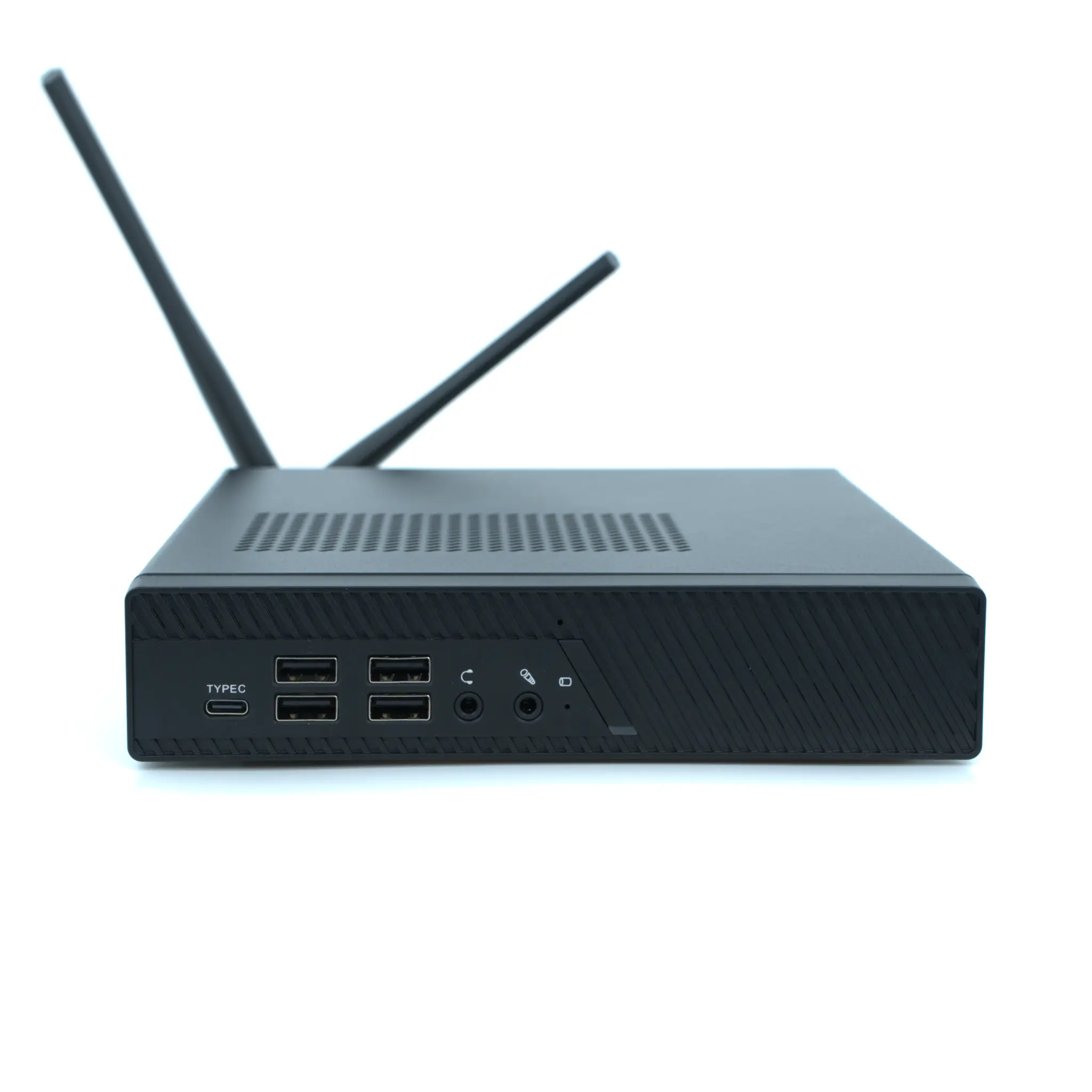
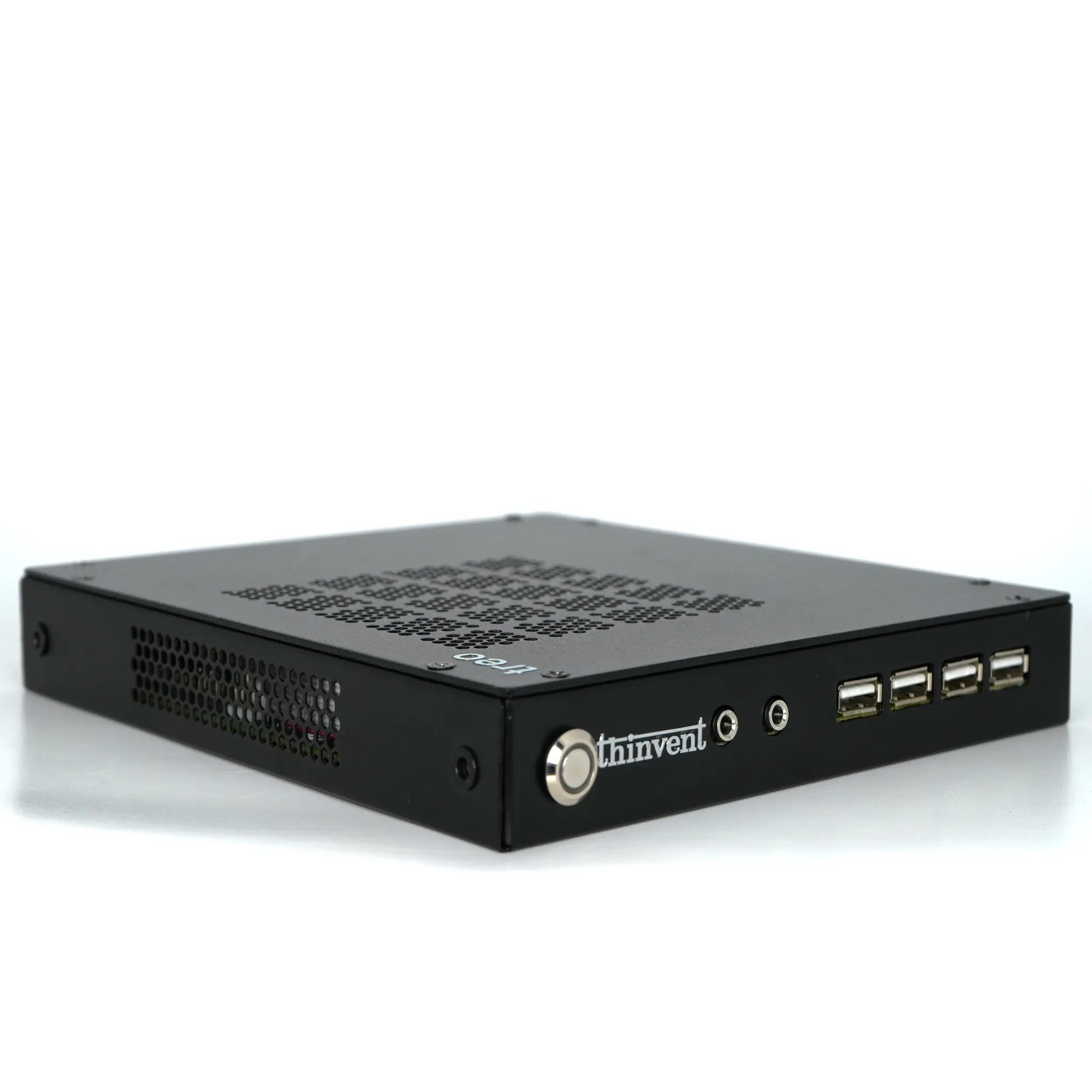
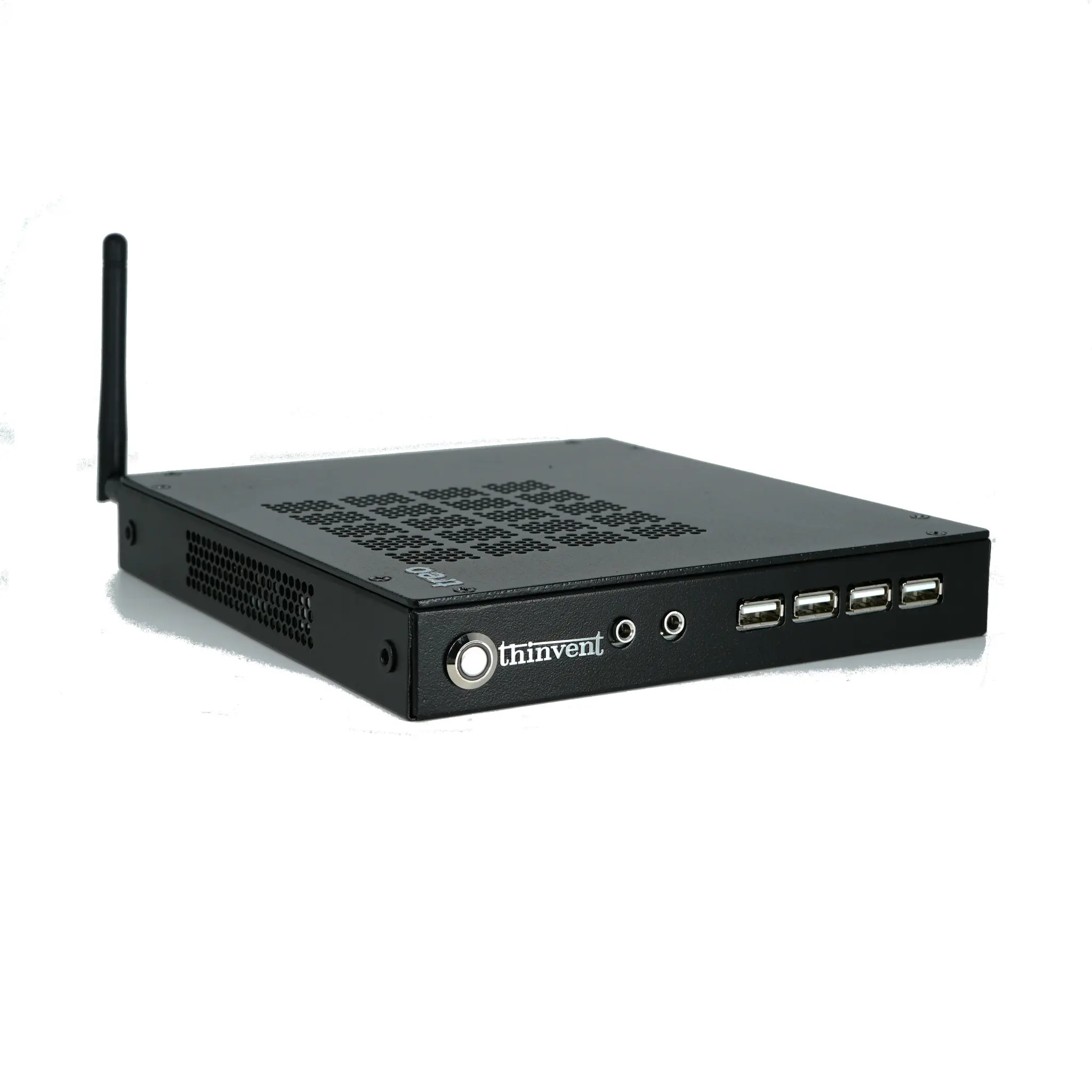
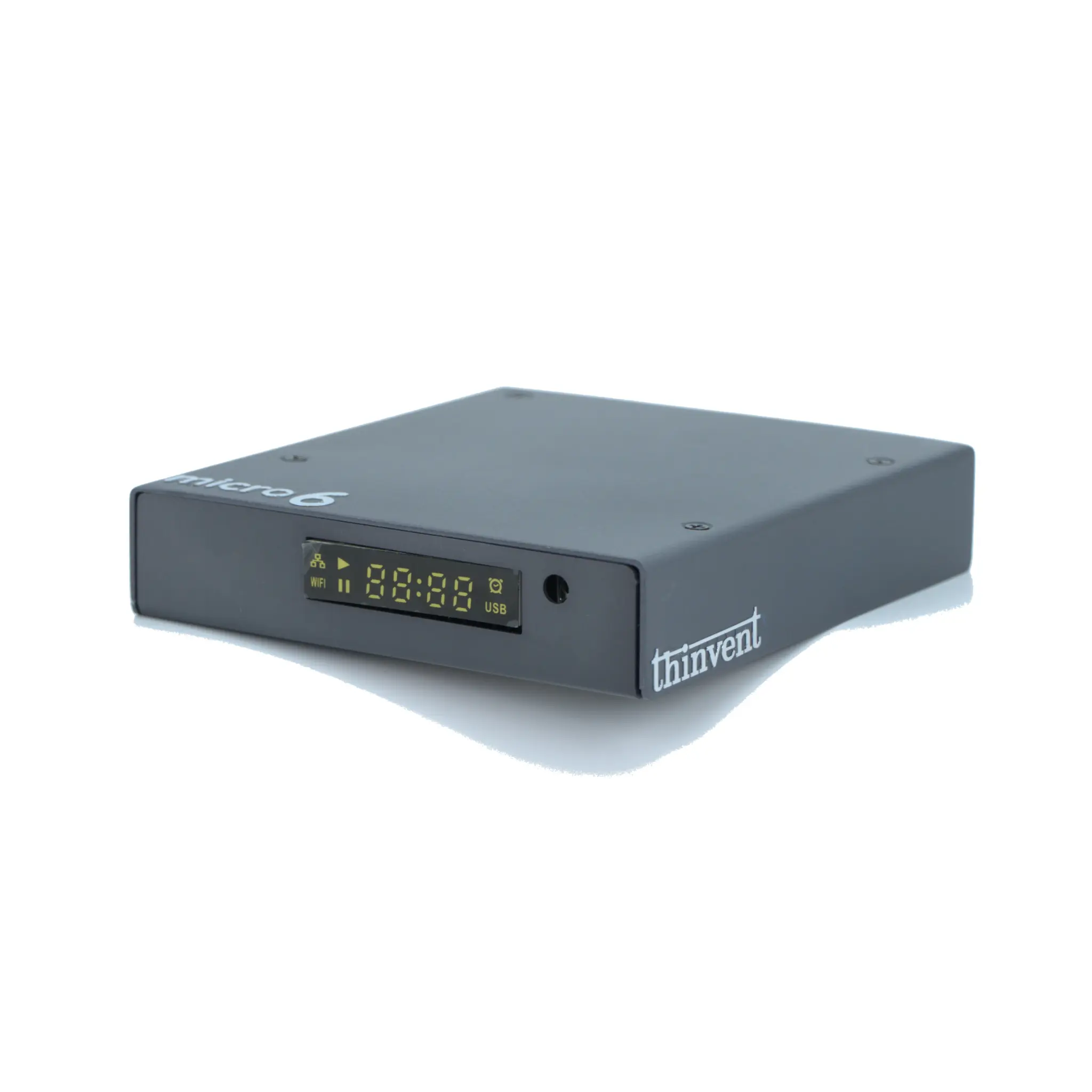
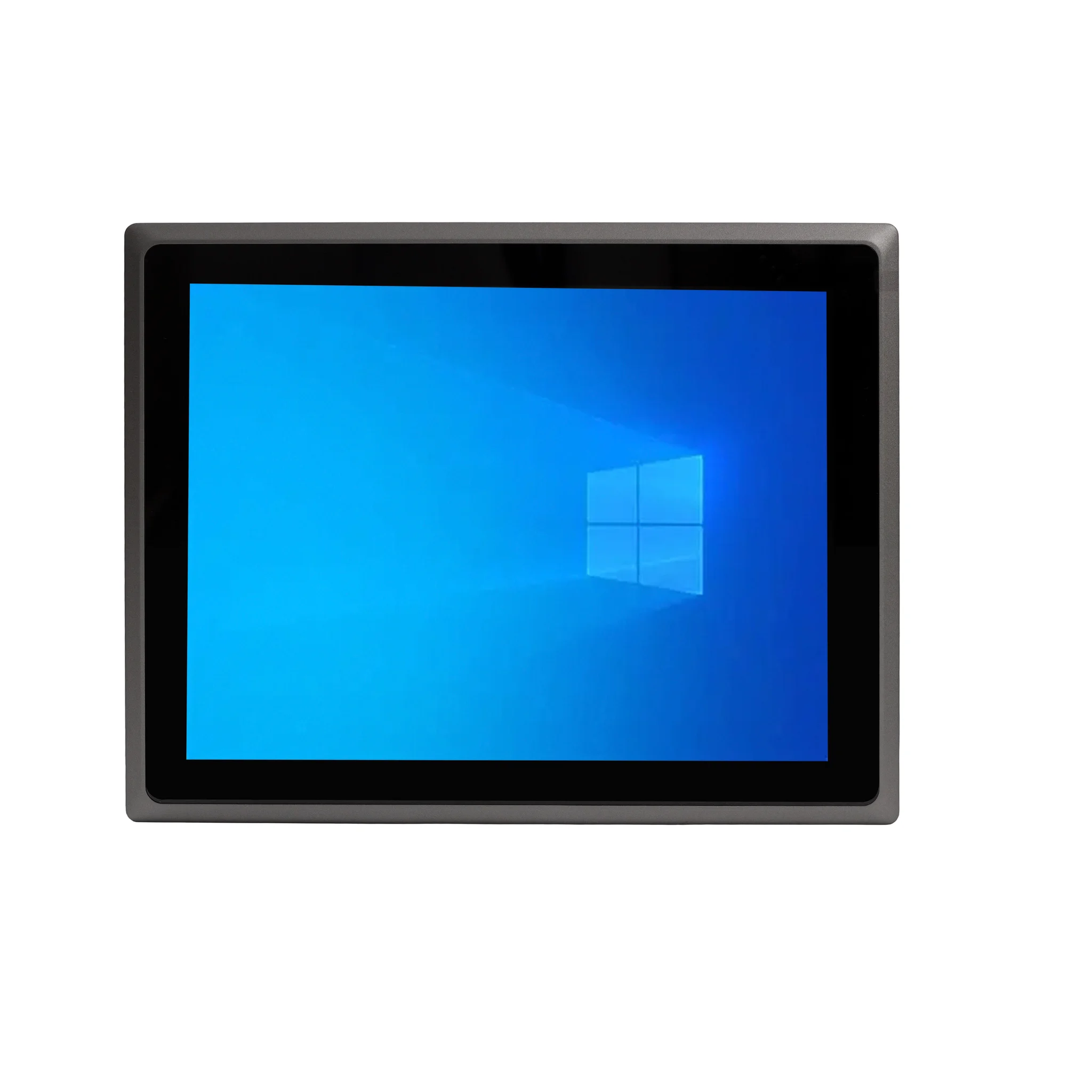
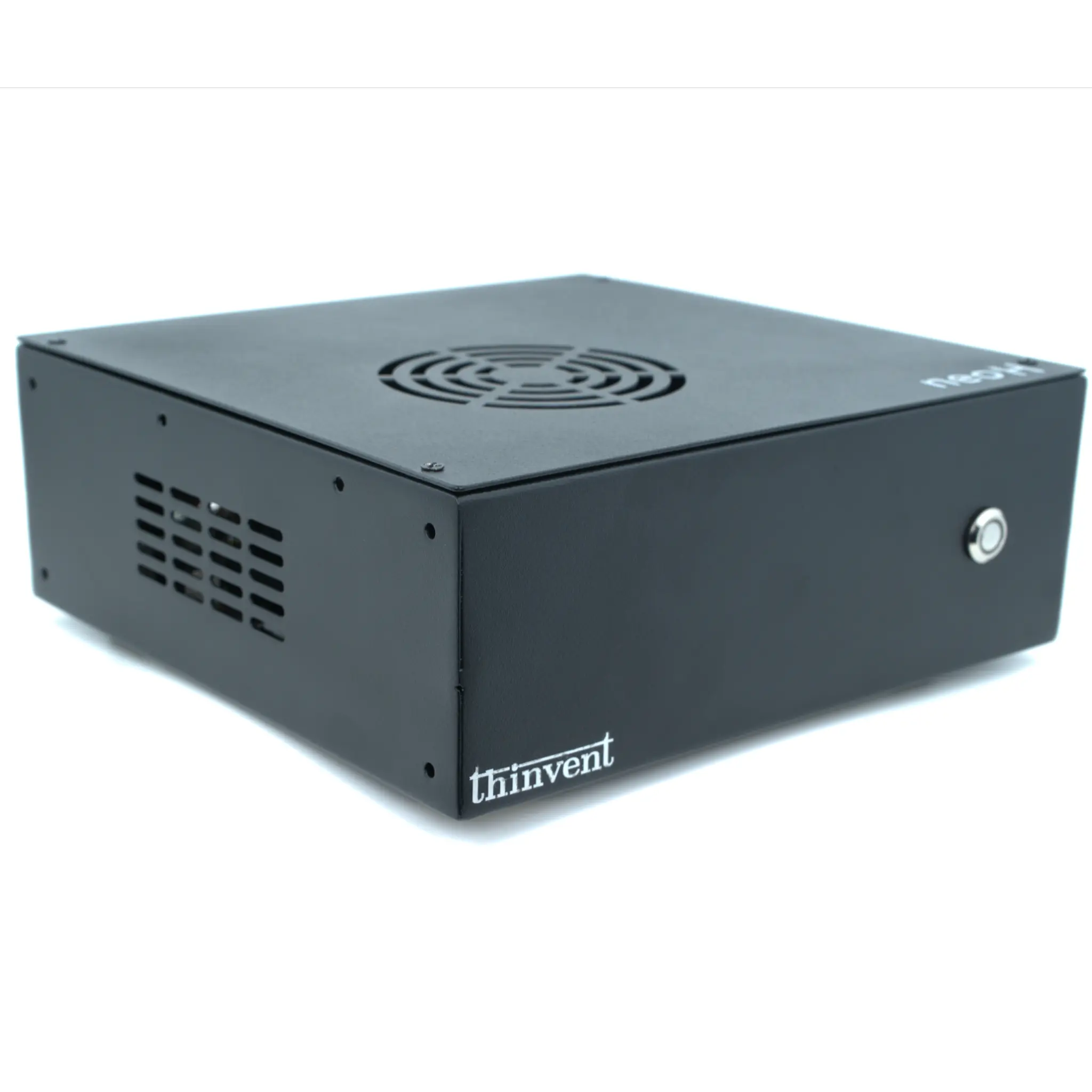
Form factor decides everything downstream — thermals, expansion, mounting and price. Mini PCs suit desks and kiosks where space is tight. Thin clients are ideal when all real work happens on a server. All-in-One PCs combine screen and computer for reception desks and meeting rooms. Industrial PCs are built for cabinets, DIN rails, shop floors and vehicles, where vibration, dust, wide temperature swings and continuous duty are normal.
| Form Factor | Best For | Typical Mounting | Cooling Approach |
|---|---|---|---|
| Mini PC | Desks, kiosks, reception, home office | VESA behind monitor | Fanless or small fan |
| Thin Client | VDI, remote desktop, call centres | VESA / shelf | Fanless |
| All-in-One | Reception, retail, meeting rooms | Stand / wall | Fanless |
| Industrial PC | Factory, SCADA, transport, outdoor cabinets | DIN rail / wall bracket | Fanless, wide-temp |
Step 2: Match the Processor to the Workload
Modern low-power silicon is far more capable than its wattage suggests. Intel's N-series and Celeron processors (N95, N100, N150, J4125) handle browsing, office suites, thin-client sessions, digital signage and light POS duty while sipping power. The Intel Core i3, i5 and i7 families — including 12th, 13th and 14th generation parts such as the i3-1215U, i5-1335U and i5-1250P — add more cores, larger caches and higher turbo clocks for multitasking, virtualisation, database work and edge analytics. More cores (6, 10 or 12) help when many tasks run at once; higher single-core clocks help when one task must finish fast.
Step 3: Size Memory and Storage Honestly
Memory is the cheapest upgrade you will ever regret skipping. 4GB is enough for a single-purpose kiosk or thin client, 8GB covers everyday office work, 16GB is the comfortable sweet spot for multitasking and light virtualisation, and 32GB or 64GB is right for engineering, CAD, databases and multiple virtual machines. For storage, 128GB suits thin clients and terminals, 256GB covers standard office use, 512GB is a sensible default, and 1024GB (1TB) makes sense for local data, media playback, image capture or logging. Solid-state storage is essentially mandatory in industrial settings — no moving parts means no mechanical failure in a vibrating cabinet.
Step 4: Cooling, Power and Longevity
Fanless design is the single biggest reliability upgrade available to a machine that runs all day. A passively cooled chassis removes the one