How Do I Reset Settings on My Computer?
Resetting settings means returning a system to a known, factory-default state. On Thinvent industrial computers, mini PCs, thin clients and all-in-one PCs, "reset settings" can refer to three different things: resetting the operating system (Windows or Linux), resetting the BIOS/UEFI firmware to defaults, or resetting a specific application or user profile. Which method you use depends on what you are trying to fix — a slow or misconfigured OS, a boot problem, or a forgotten password.
Resetting the Operating System
On Windows 11 Pro and Windows 11 IoT, open Settings → System → Recovery → Reset this PC. Choose Keep my files to preserve documents and reinstall Windows cleanly, or Remove everything for a full factory reset. On Thinvent devices with a recovery partition, you can also reset from the recovery environment at boot. On Ubuntu Linux 24.04 LTS or Thinux™ Embedded Linux, a "reset" normally means reinstalling the OS image from a USB recovery drive, or restoring a saved system image. Always back up your data first — a reset erases installed applications and custom configuration.
Resetting BIOS/UEFI to Defaults
If the machine will not boot or a setting change caused instability, reset the firmware instead. Power on the unit and press Del or F2 during POST to enter BIOS setup, then select Load Optimized Defaults (or Load Setup Defaults), save with F10, and exit. If you cannot enter setup at all, power off, open the chassis, locate the CMOS battery or clear-CMOS jumper on the motherboard, and follow the board documentation to clear it — this restores the firmware to factory settings, including boot order and date/time.
Quick Reference: Which Reset Do You Need?
| Symptom | What to Reset | Typical Method |
|---|---|---|
| Slow, unstable or virus-affected OS | Operating system | Settings → Recovery → Reset this PC |
| Wrong boot device, failed BIOS change | BIOS/UEFI firmware | Load Optimized Defaults, save & exit |
| Forgotten Windows password | Local account / OS | Password reset disk or full OS reinstall |
| Application behaving oddly | App or user profile | Reinstall app or delete profile folder |
| Linux system misconfigured | OS image | Reinstall image from USB recovery drive |
Best Practices Before You Reset
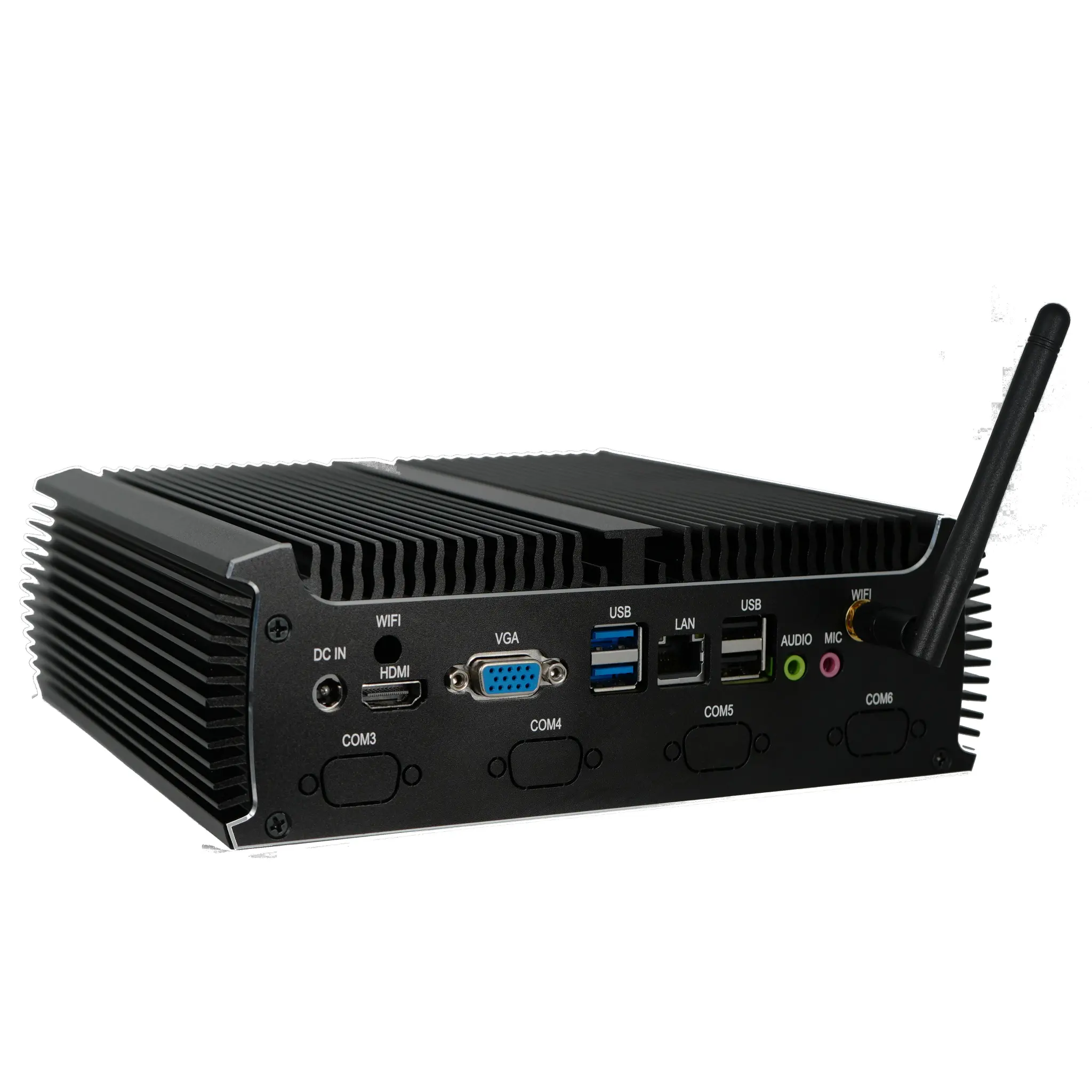
Record your network settings, static IP addresses, serial-port assignments and any custom software licences before resetting — industrial and commercial deployments often run specialised line-of-business or SCADA software that must be reinstalled. Note the firmware version and any custom BIOS settings (such as power-on-after-power-failure or watchdog timers) so you can restore them. After a reset, reapply your security policies, rejoin the device to your domain or management platform, and verify that all peripherals — including multi-serial DB9 ports and dual Ethernet links — are detected correctly.
Thinvent Products and Easy Recovery
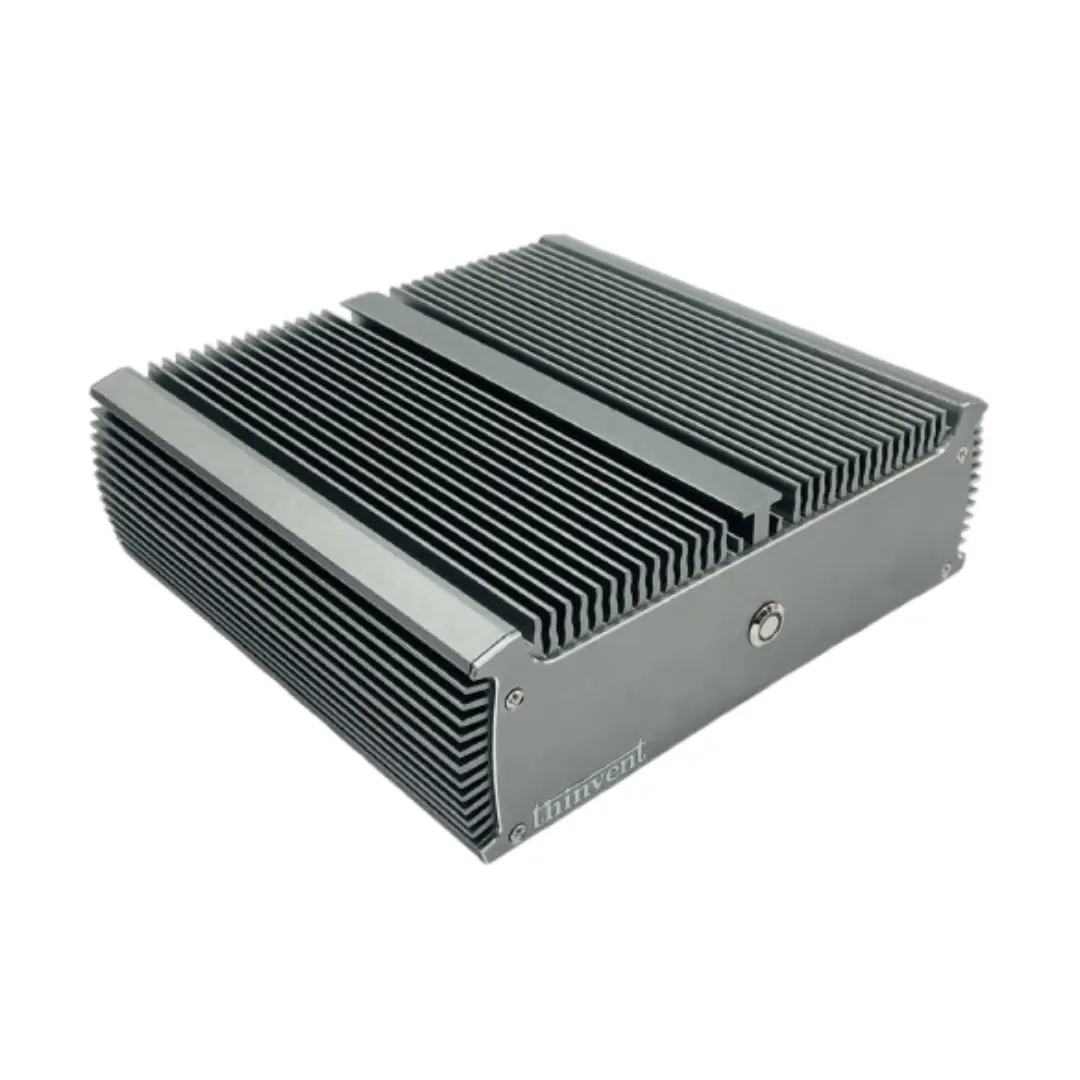
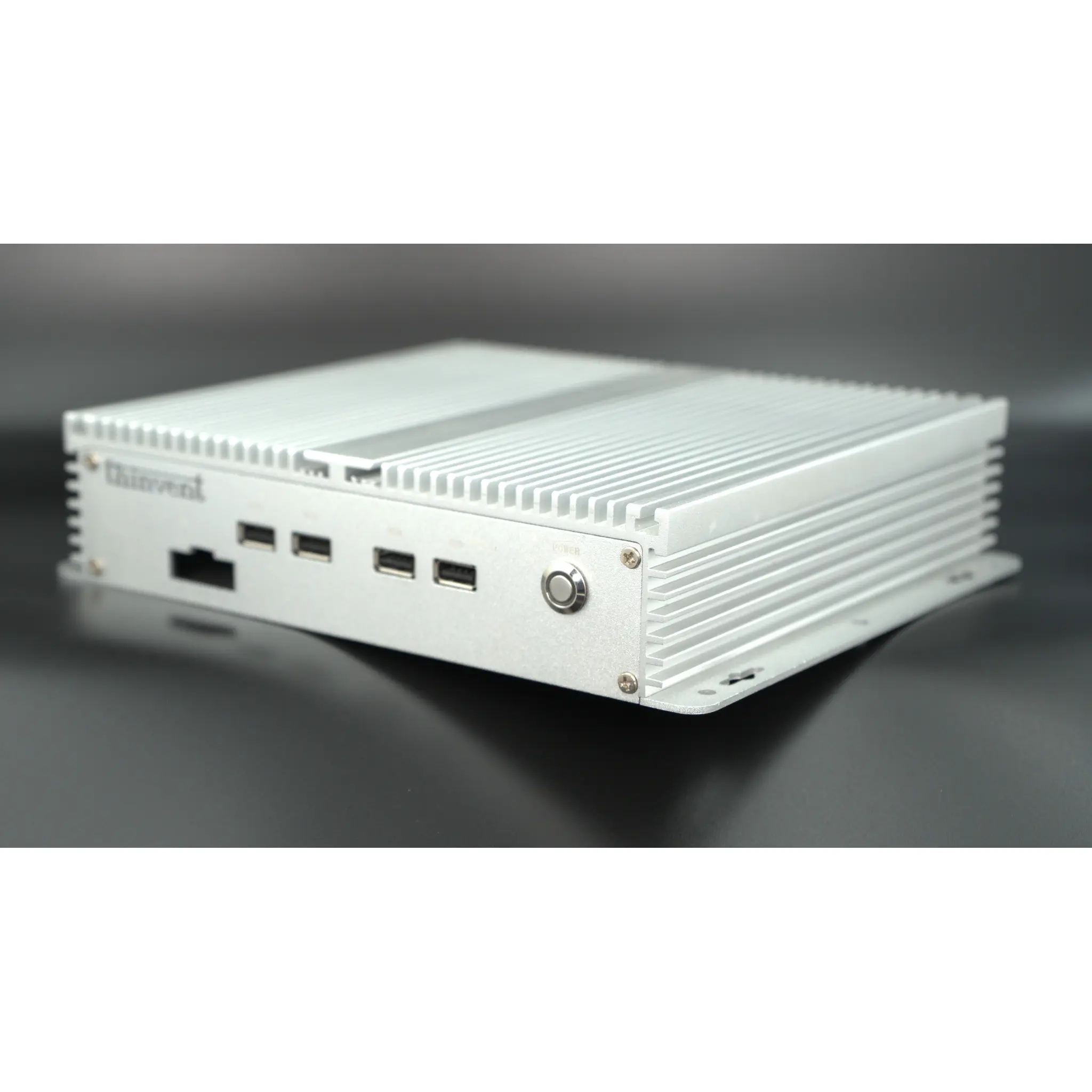
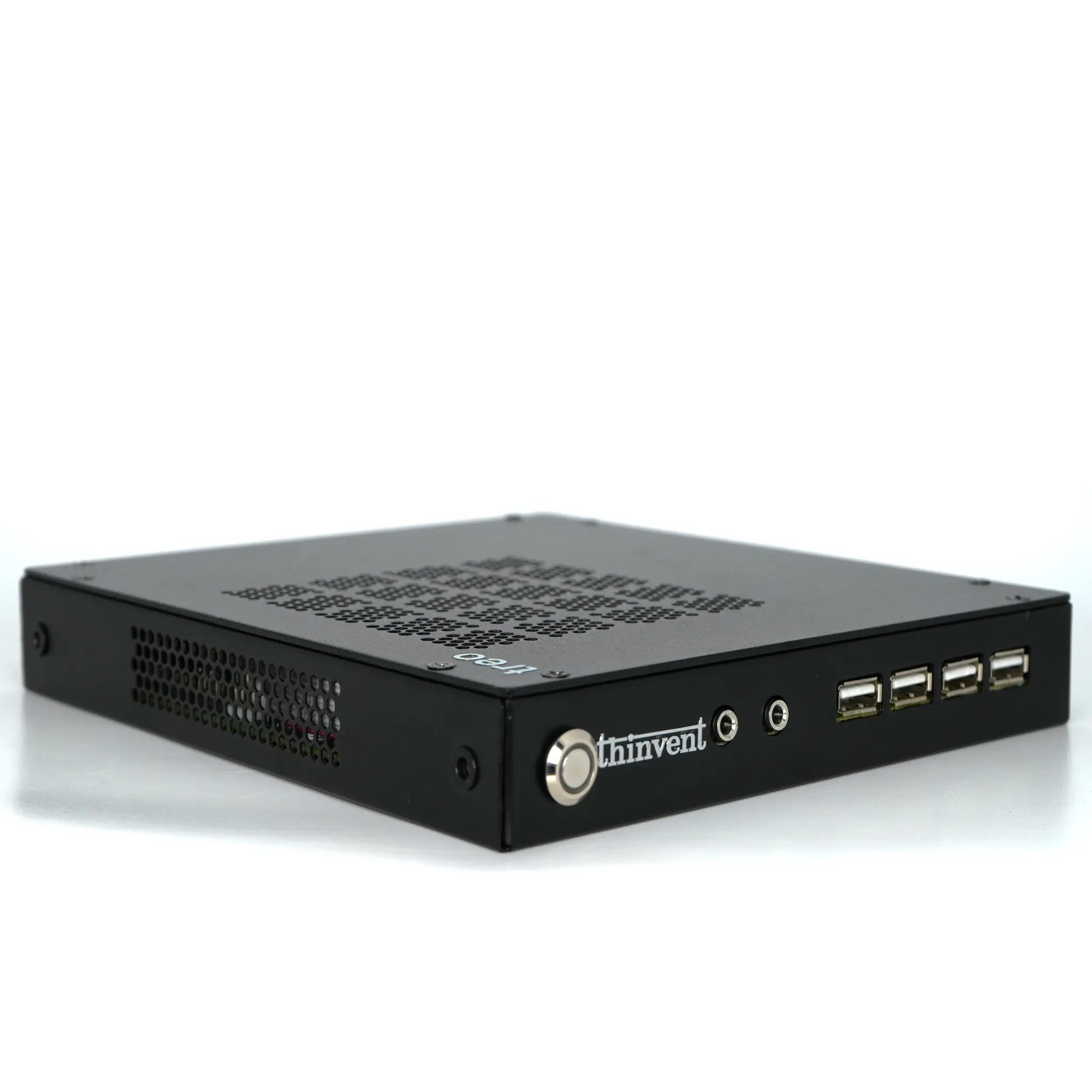
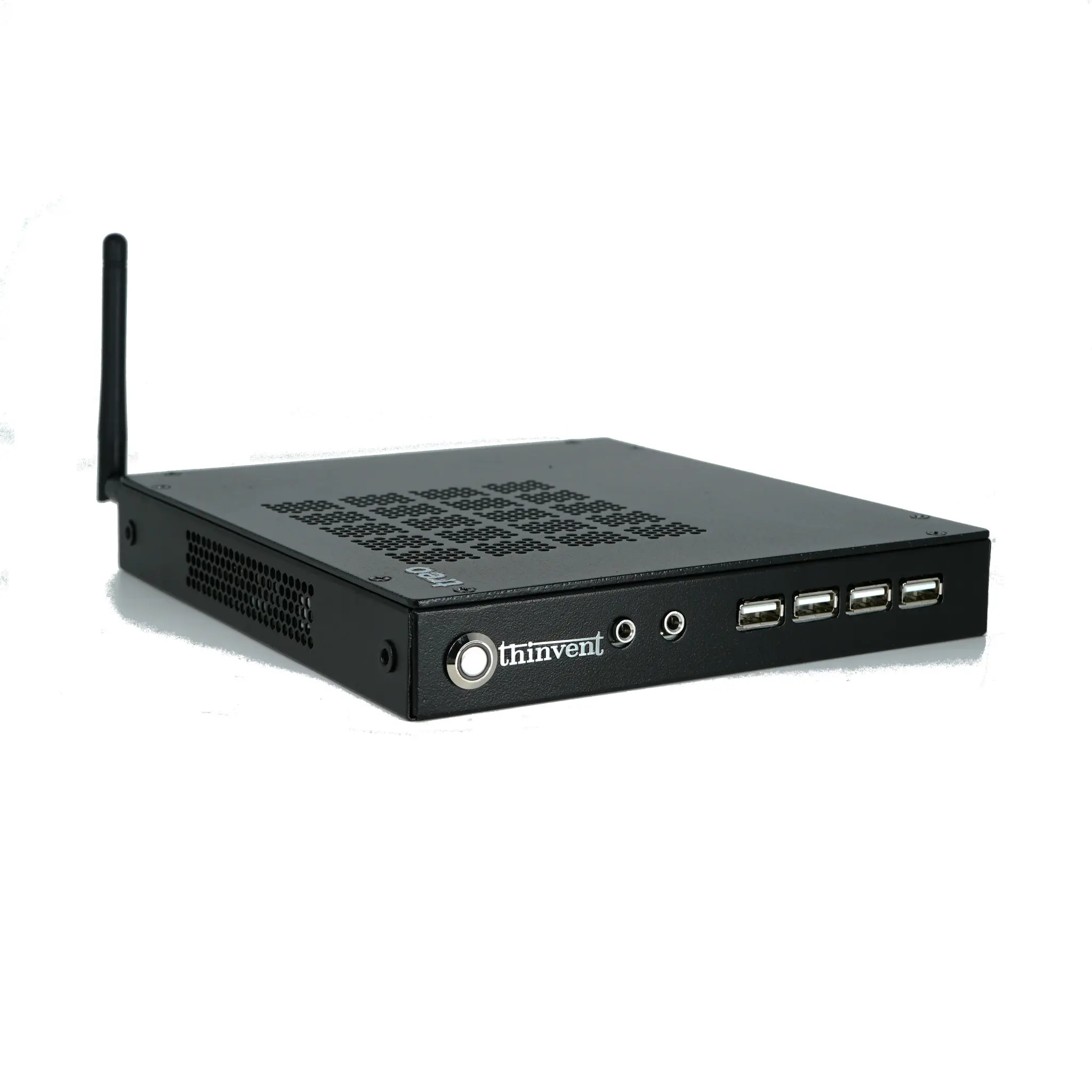
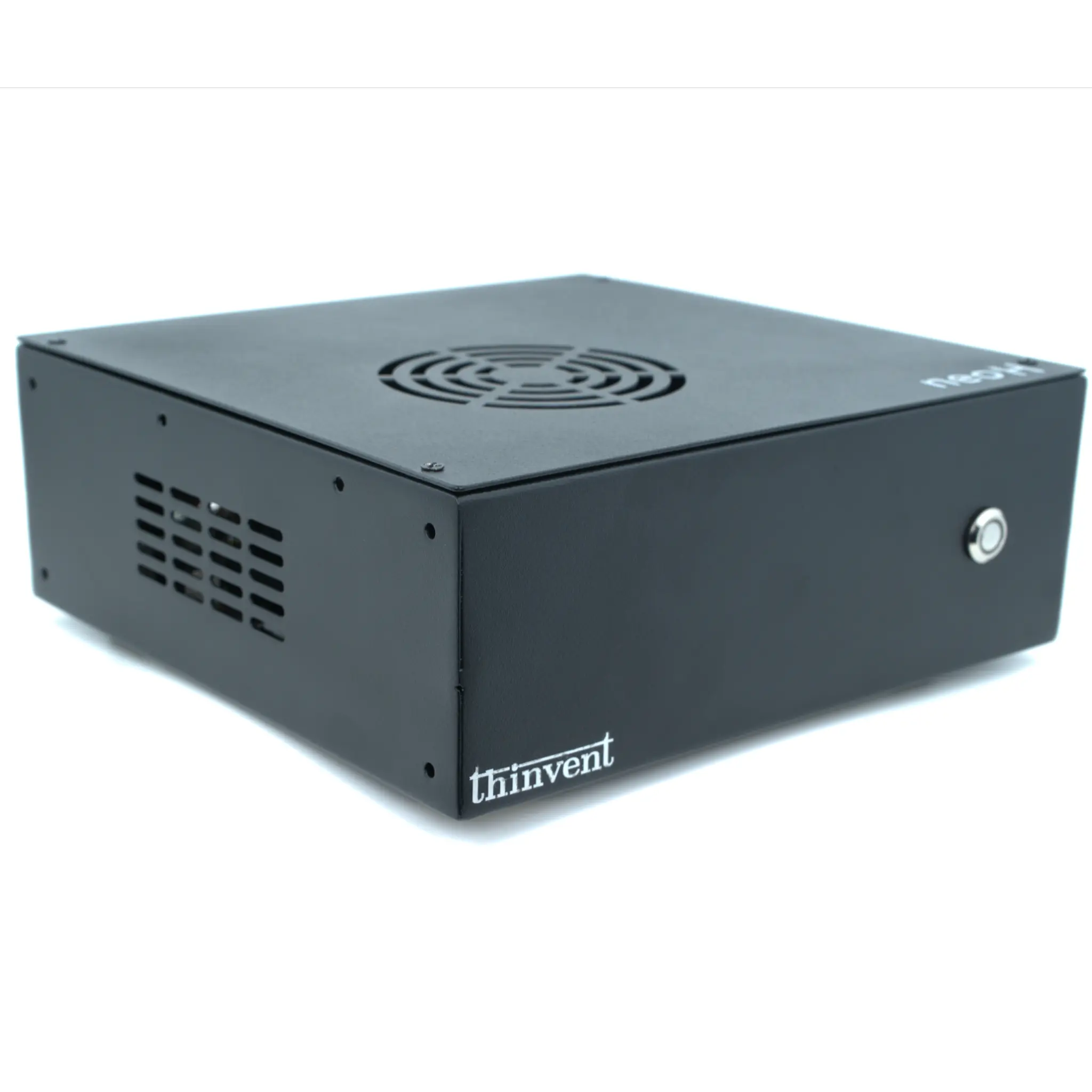
Thinvent industrial PCs, mini PCs, thin clients and all-in-one PCs are designed for straightforward maintenance in the field. Models such as the IPC3 series ship with a choice of Windows 11 Pro, Windows 11 IoT, DOS, Ubuntu Linux 24.04 LTS or Thinux™ Embedded Linux, so you can standardise on the recovery workflow that suits your deployment. Fanless chassis with accessible storage and clearly documented BIOS options make firmware resets and OS reimaging quick, while dual Gigabit Ethernet, multiple USB 3.2 Gen 2 and USB-C ports, and optional quad DB9 serial ports let you restore full connectivity after any reset. For volume deployments, Thinvent can supply pre-imaged storage and documented recovery procedures so a reset takes minutes, not hours.