Short Answer
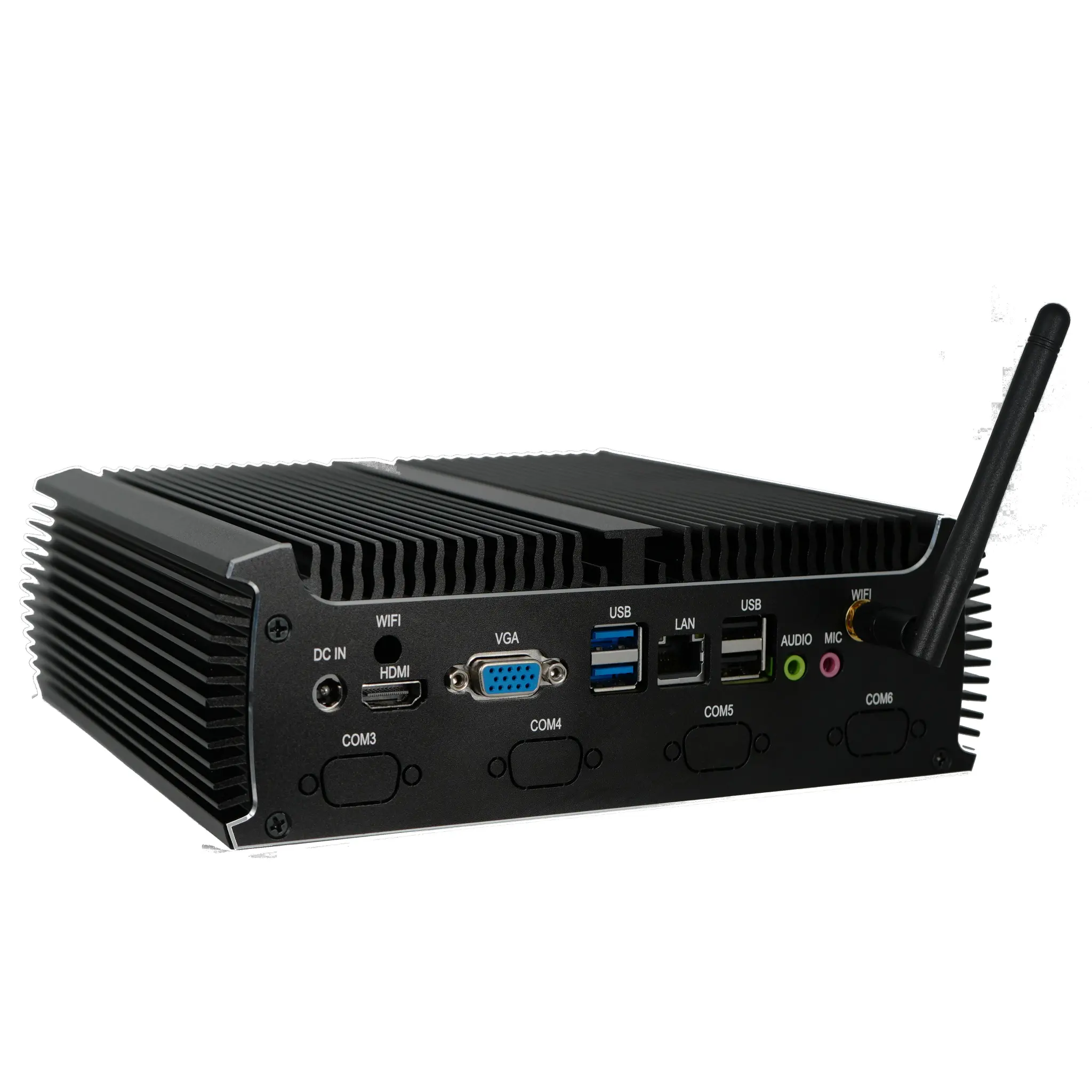
Resetting settings on an industrial PC or mini PC means one of three things, and the right procedure depends on which one you need: (1) resetting the operating system back to a clean state, (2) resetting the BIOS/UEFI firmware to factory defaults, or (3) clearing runtime state only without touching stored settings at all. Most support tickets that begin with "how do I reset..." turn out to be one of the first two. Before you start, note down static IP addresses, gateway details, serial port assignments, COM port mapping and any licence keys, because a reset will usually clear them.
Method 1 — Reset the Operating System
On a system running Windows 11 Pro or Windows 11 IoT Value, open Settings → System → Recovery → Reset this PC and choose whether to keep personal files or remove everything. "Keep my files" is the faster option for a corrupted driver or a misconfigured user profile; "Remove everything" is the correct choice when a machine is being redeployed to a new site or has been exposed to untrusted software. Both options take roughly 20–60 minutes depending on SSD size and processor. If the machine no longer boots far enough to reach Settings, use the recovery partition or a bootable USB installer instead, and be aware that this repartitions the drive.
For units shipped with a DOS/FreeDOS base or an embedded Linux image such as Thinux™ Embedded Linux, there is typically no in-OS reset wizard. The standard practice is to reflash the storage from a master image: clone a known-good unit with disk imaging software, or boot from a USB image and restore the root filesystem. Embedded Linux deployments usually keep the root filesystem read-only with a writable overlay, so "resetting" often just means discarding the overlay directory and rebooting.
Method 2 — Reset BIOS/UEFI to Factory Defaults
Firmware settings