How Do I Reset the Settings of an Industrial PC?
Resetting an industrial computer back to its factory settings is a straightforward process, but the exact steps depend on whether you want to reset the operating system, the firmware (BIOS/UEFI), or the device's network and application configuration. Unlike a consumer laptop, an industrial PC is often running a fixed workload — a kiosk, a machine controller, a data logger — so a reset should always be planned and backed up first.
Reset the Operating System
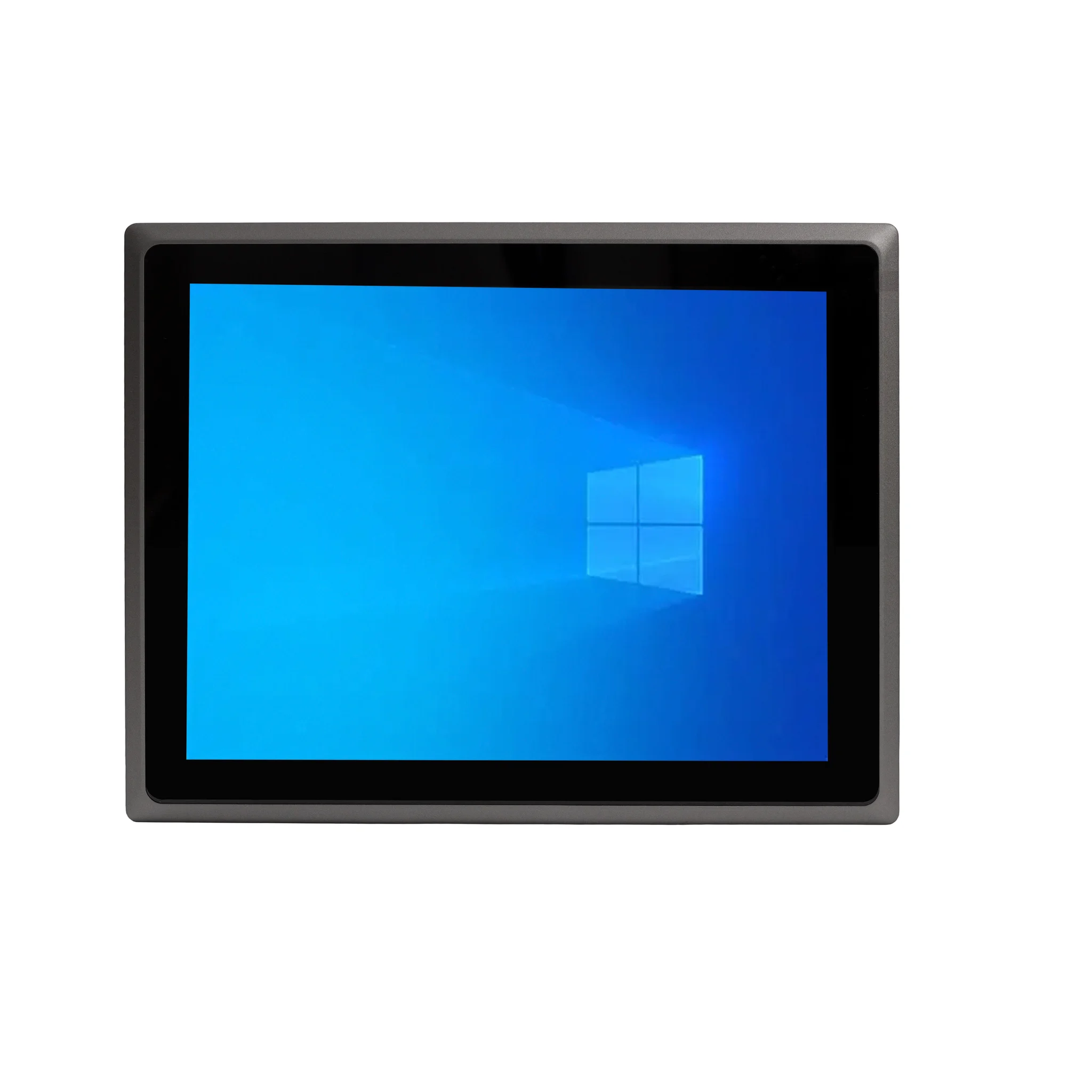
On Windows 11 Pro or Windows 11 IoT, open Settings → System → Recovery and choose "Reset this PC." You can keep your files or remove everything; for a true factory reset, select "Remove everything" and let it reinstall Windows. On Ubuntu Linux 24.04 LTS or Thinux™ Embedded Linux, a full reset usually means reimaging the drive from your original installation media or a cloned image. Many deployments keep a golden image on a USB drive or over the network so any unit can be restored to a known-good state in minutes.
Reset the BIOS/UEFI Firmware
To reset firmware settings, power on the unit and press the BIOS entry key (commonly Del or F2) during POST. Inside the setup utility, look for "Load Setup Defaults," "Load Optimized Defaults," or "Restore Defaults" — typically on the Exit or Save & Exit page. Confirm, then save and exit. If the system will not POST or you have lost the BIOS password, use the CLR_CMOS jumper or remove the coin cell battery for a few minutes with power disconnected. Always record custom settings (boot order, serial port modes, watchdog timers) before clearing, since these are often tuned for the specific machine the PC controls.
Reset Network and Application Configuration
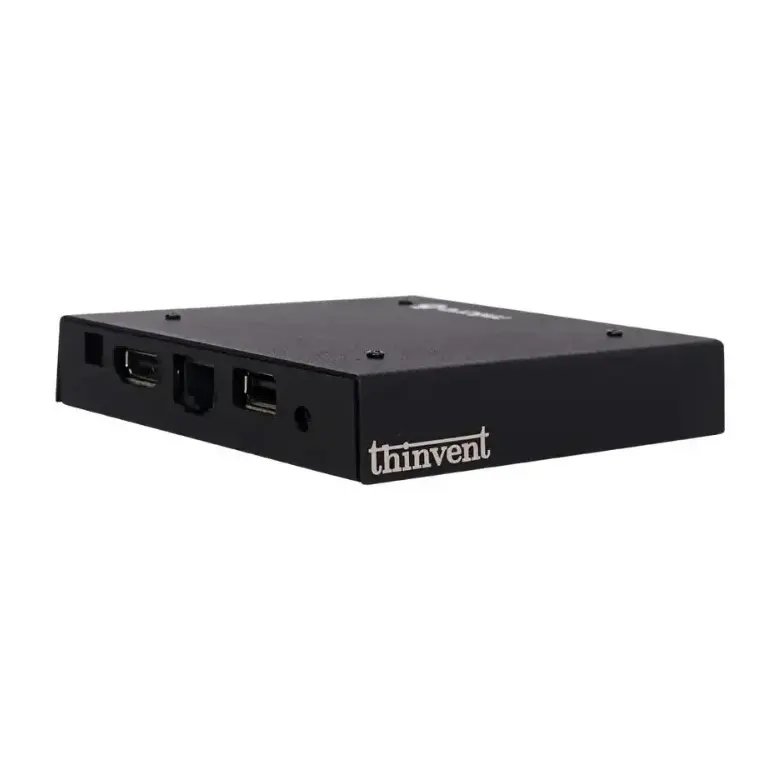
For thin clients and edge devices, the most common "reset" is restoring network and application settings rather than the whole OS. This may mean returning to DHCP from a static IP, clearing a saved server address, or re-importing a default configuration file through the device's management interface. Keep a written record of IP addresses, gateway details, and any serial/DB9 mappings so the unit can be brought back into service without guesswork.
Comparison: What Each Reset Affects
| Reset Type | What It Clears | Typical Method | Downtime |
|---|---|---|---|
| OS reset | User files, apps, drivers | Settings → Recovery, or reimage | 20–60 min |
| BIOS/UEFI reset | Boot order, serial modes, watchdog | Load Defaults or CLR_CMOS | 5–15 min |
| Network/app reset | IP, server address, config file | Management UI or config import | 5–10 min |
Best Practices Before You Reset
Back up any logs, licences, and configuration files first. Note the OS edition and build, the storage layout, and any custom BIOS values. If the unit is part of a fleet, test the reset procedure on one machine before applying it to the rest. For fanless industrial PCs running 24/7, a documented reset and recovery routine is as important as the hardware itself.
Thinvent Industrial PCs Built for Easy Recovery
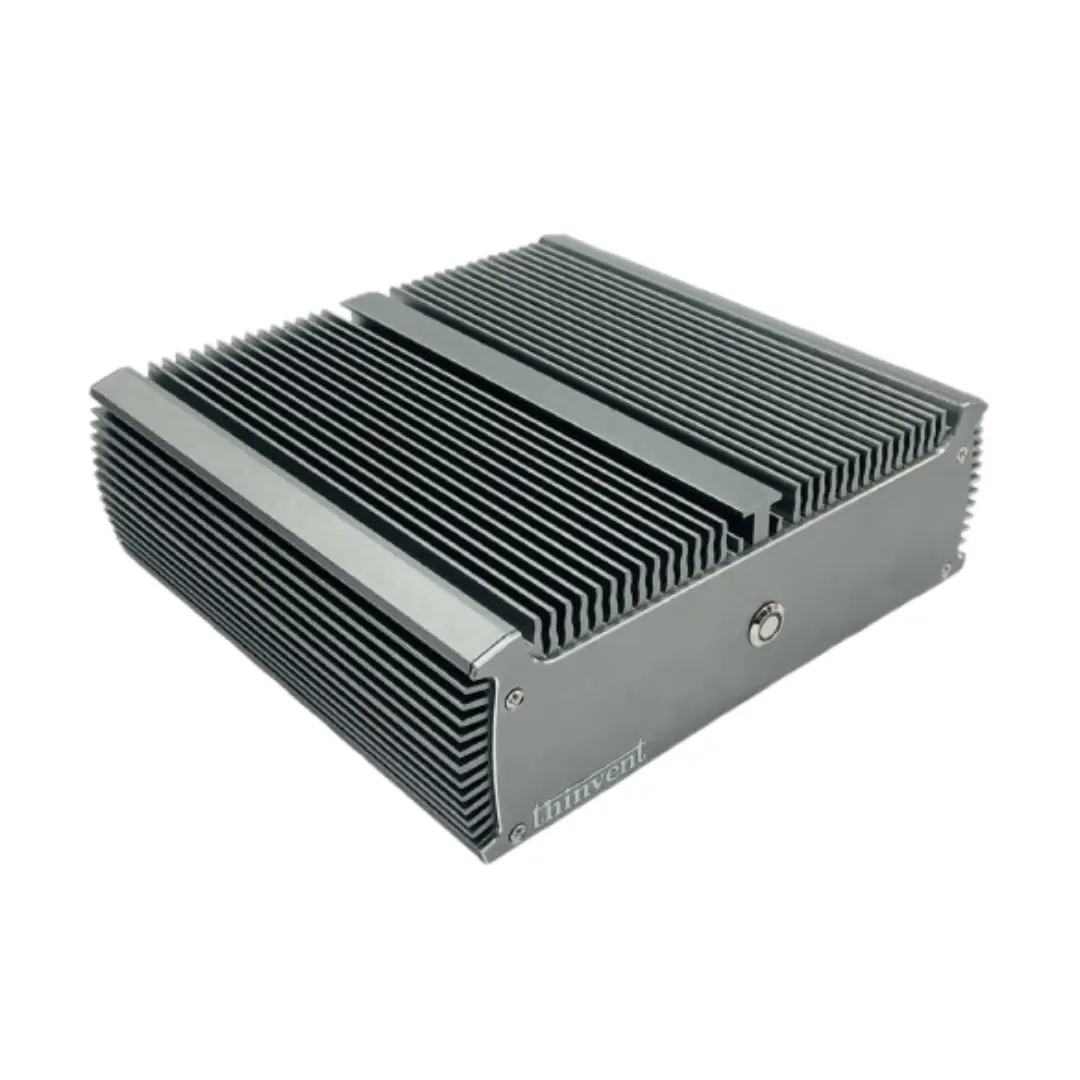
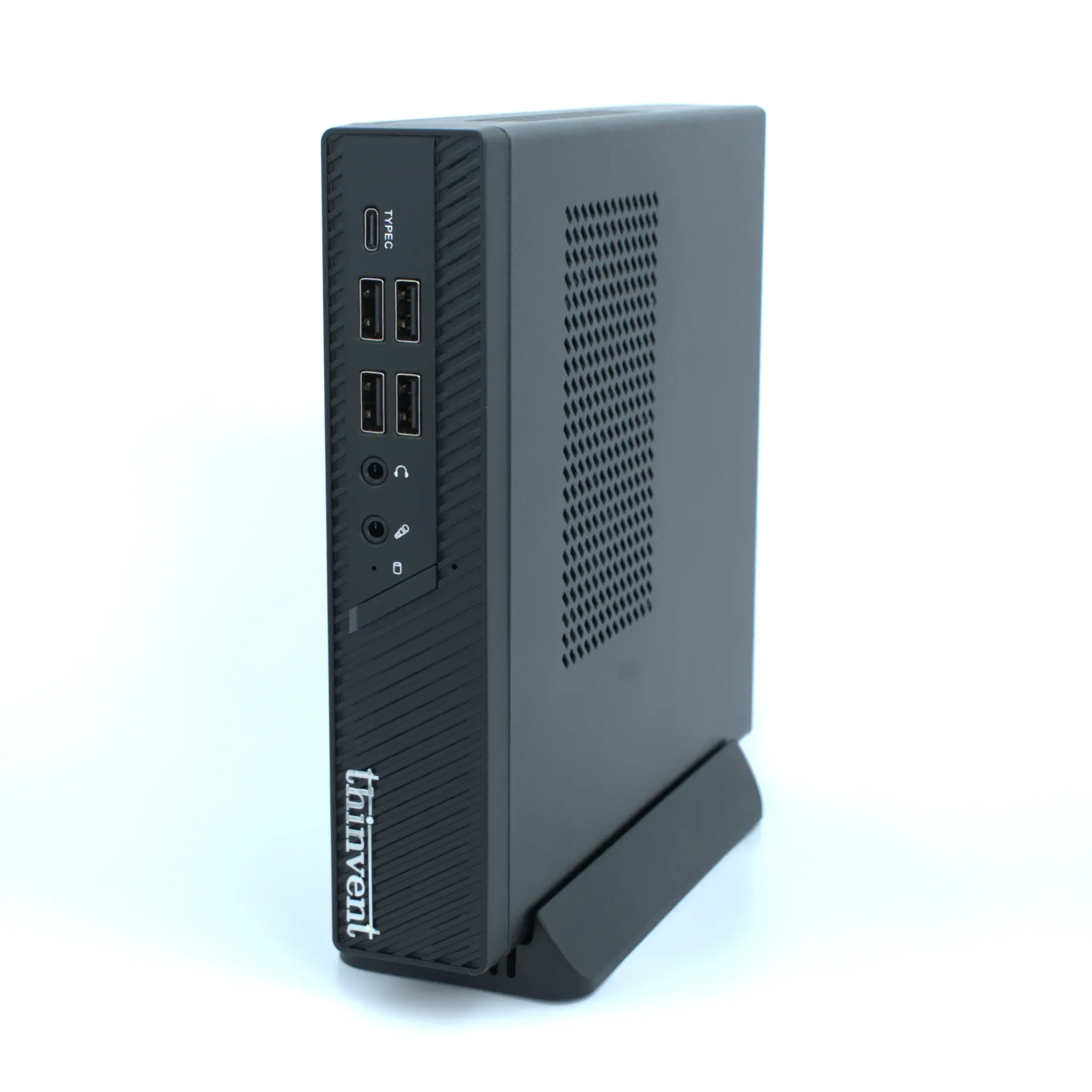
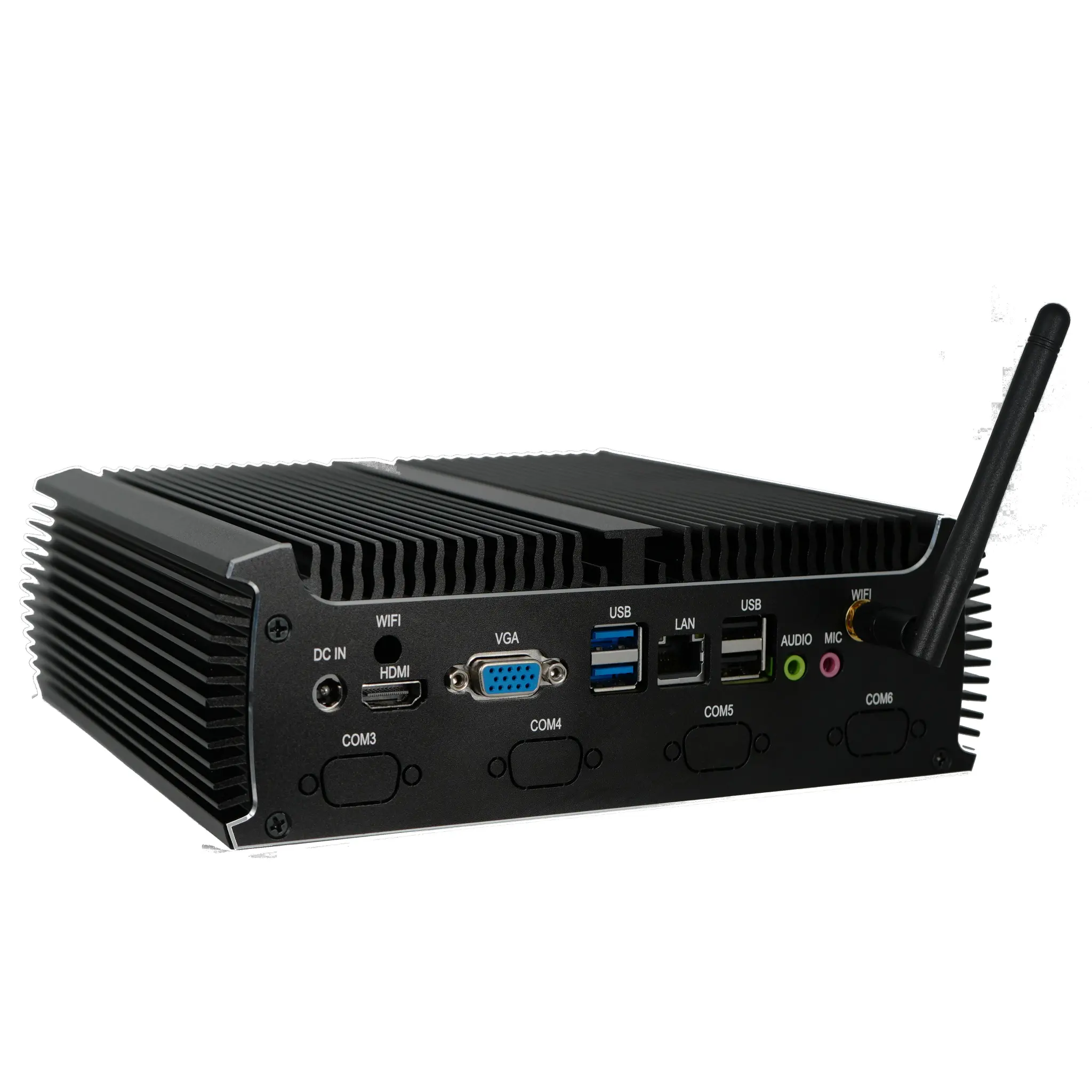
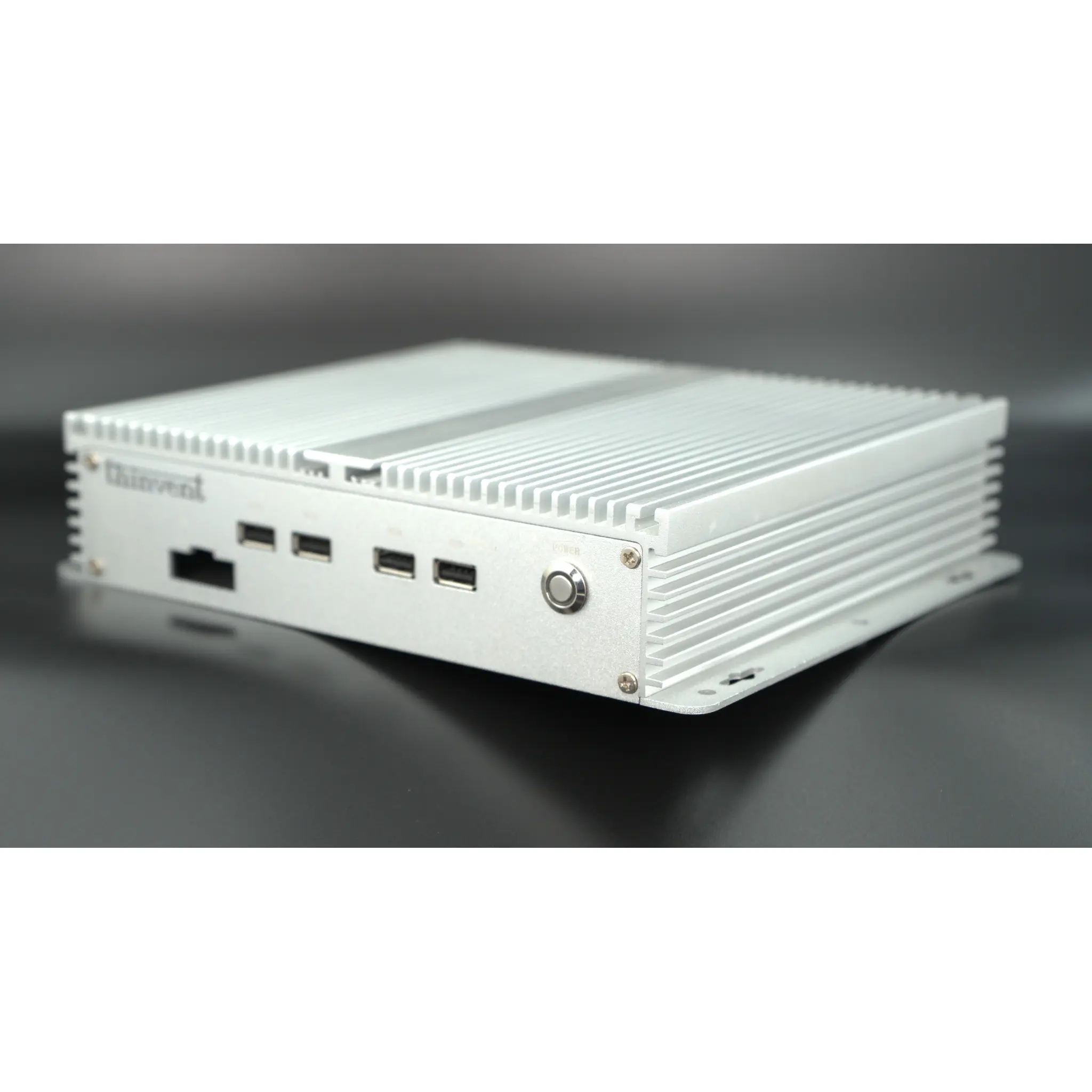
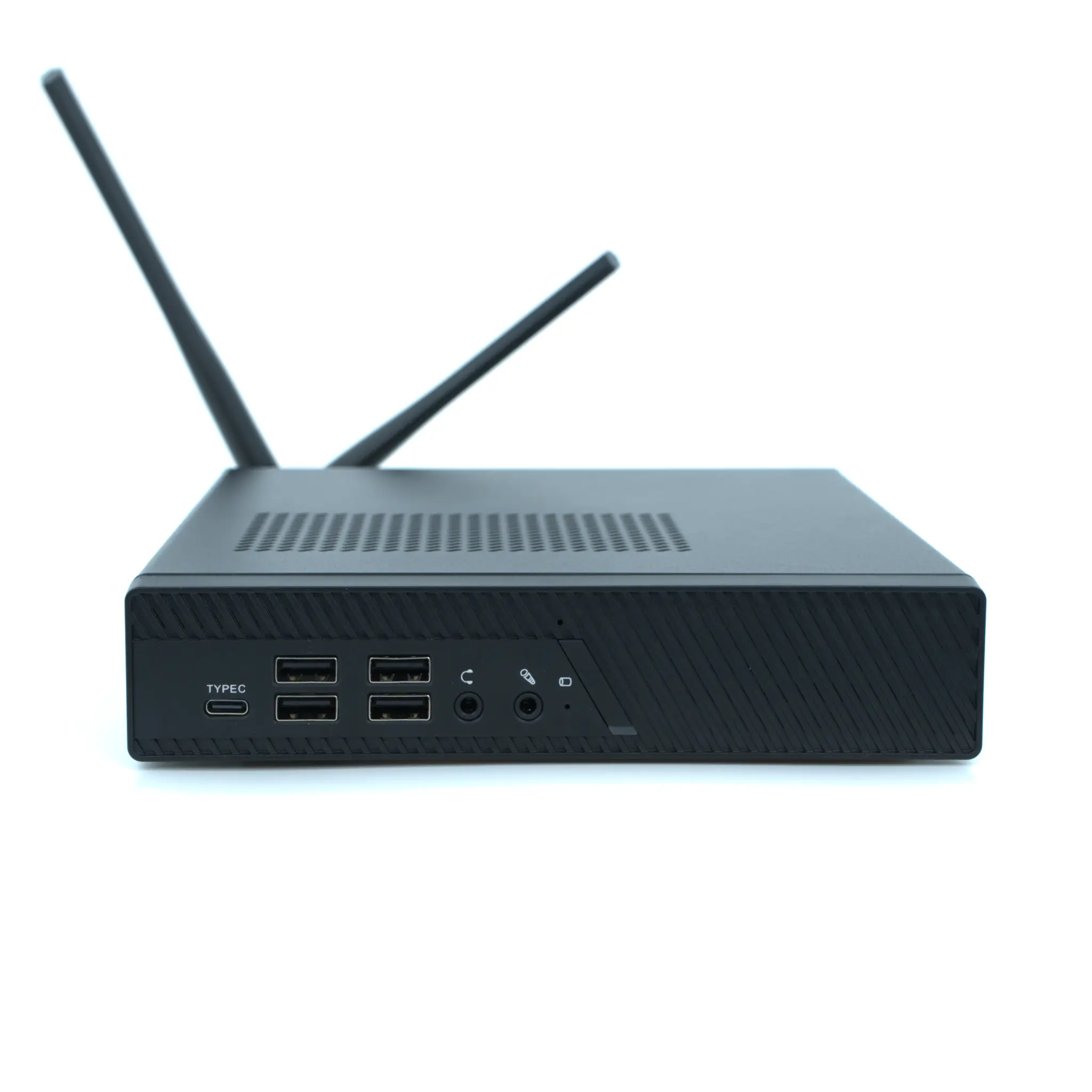
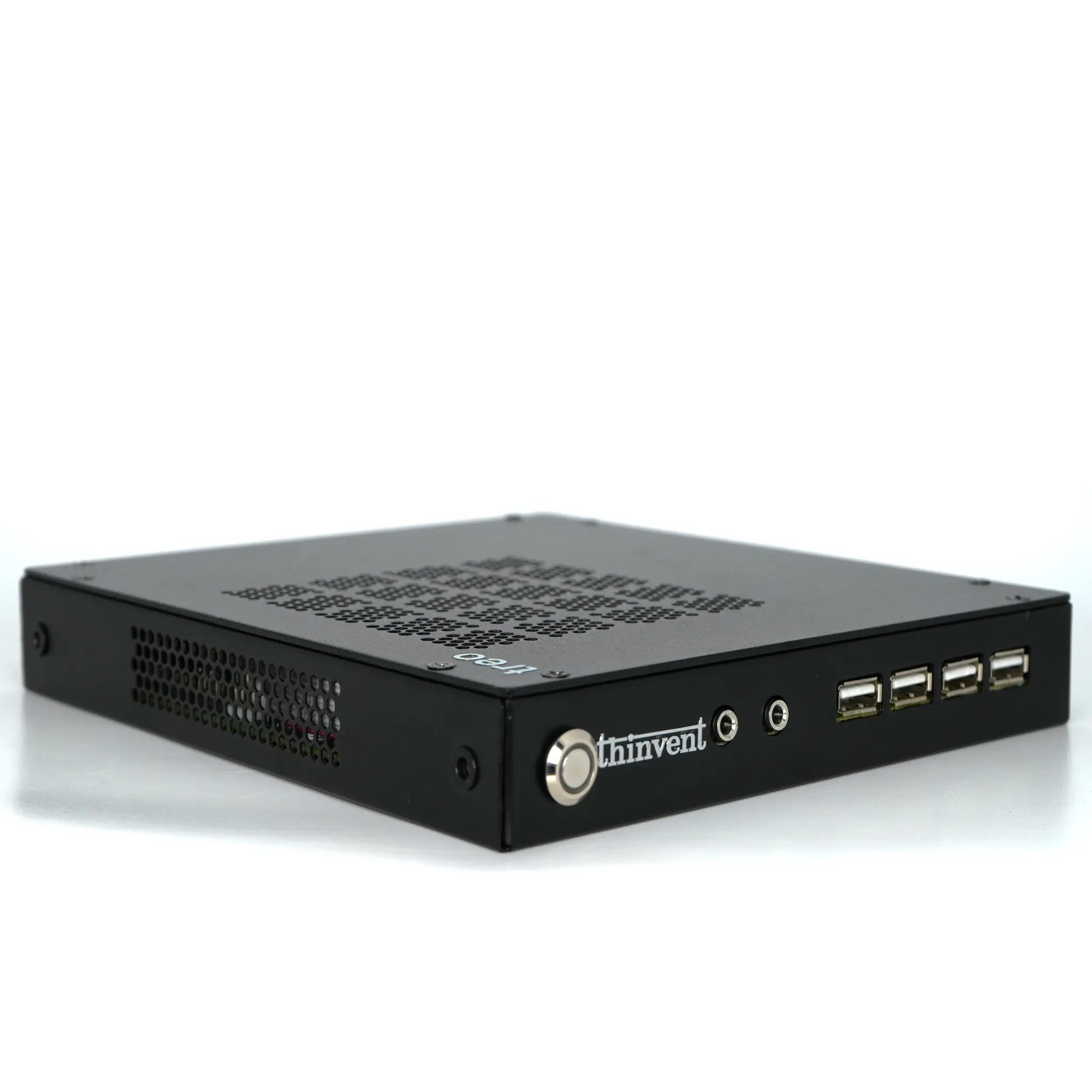
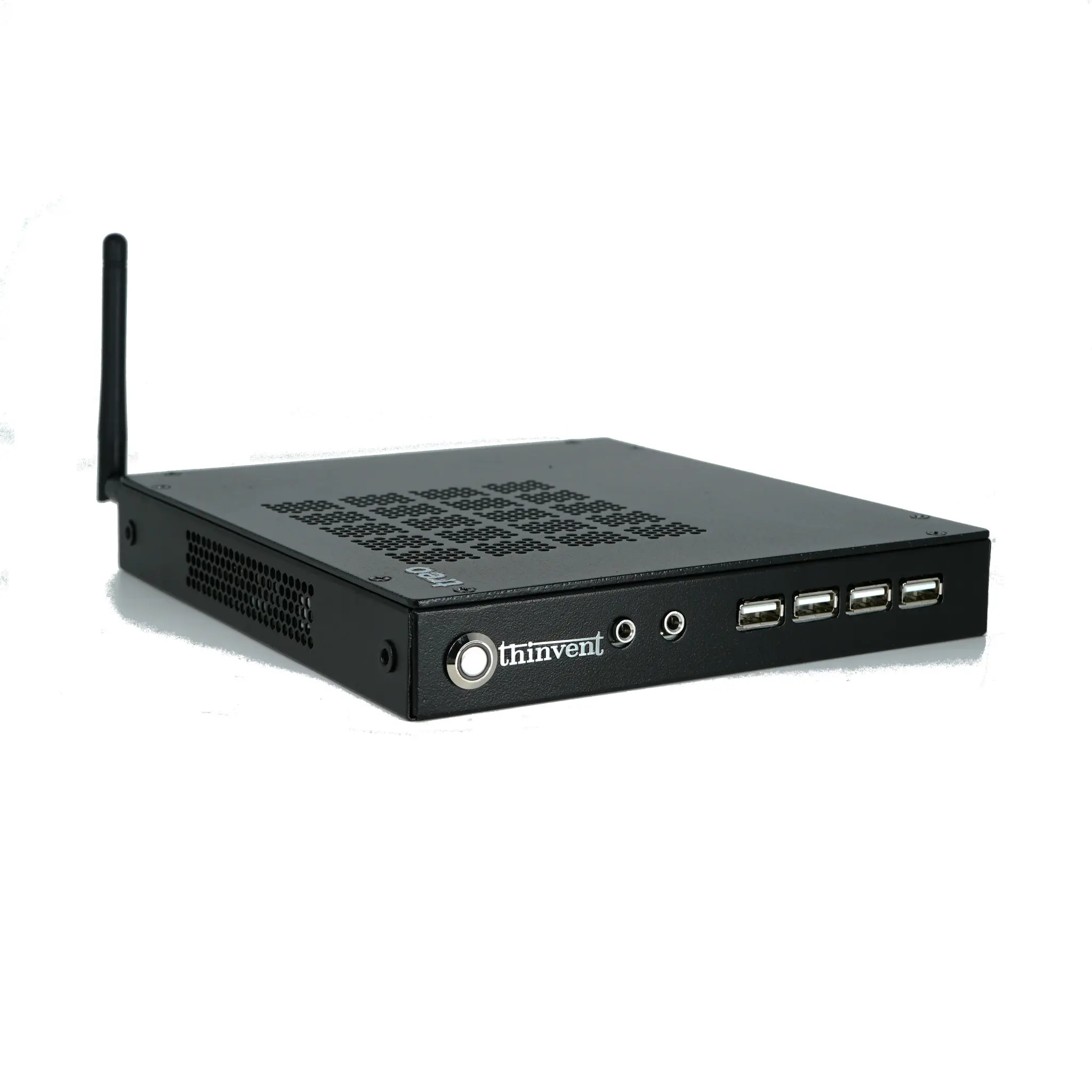
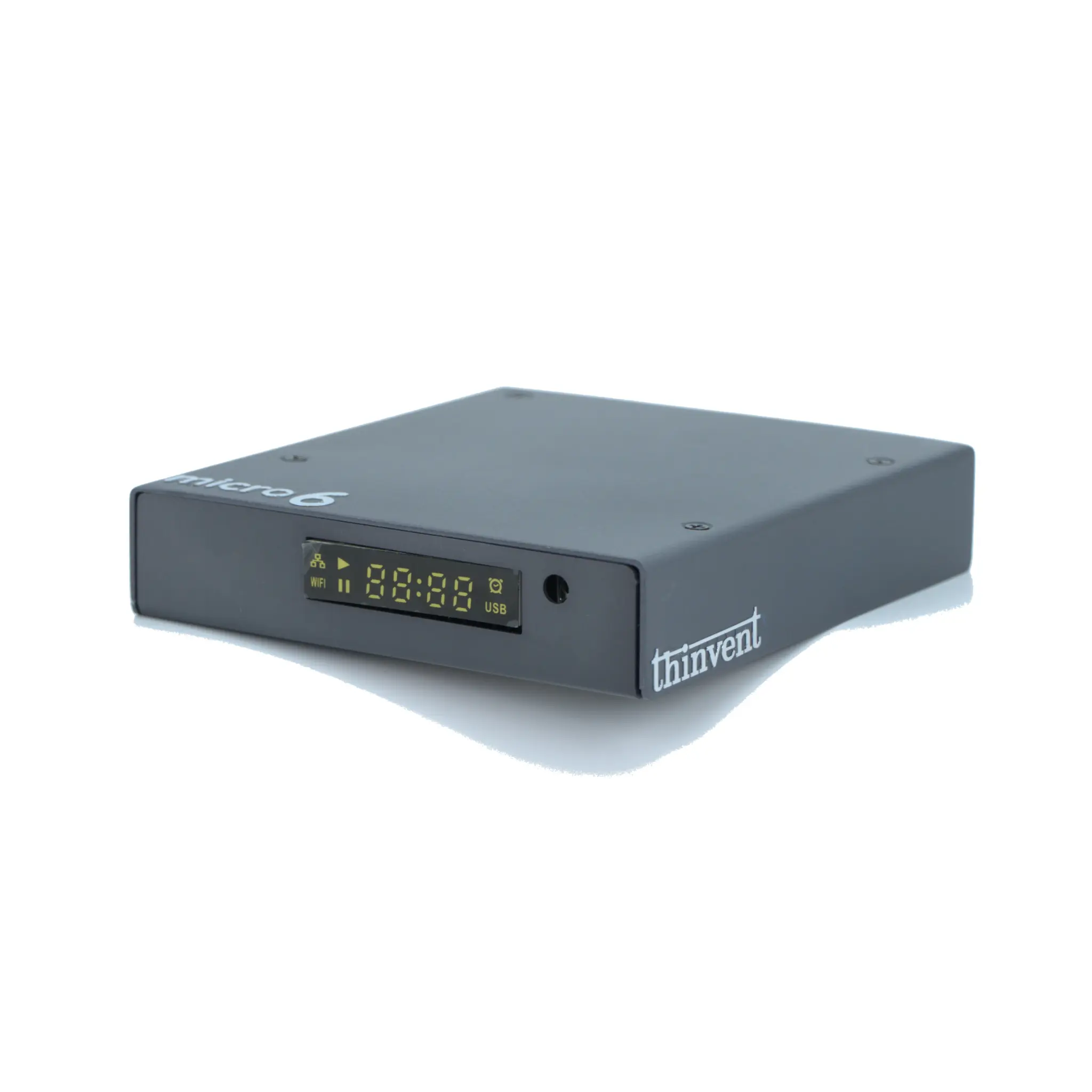
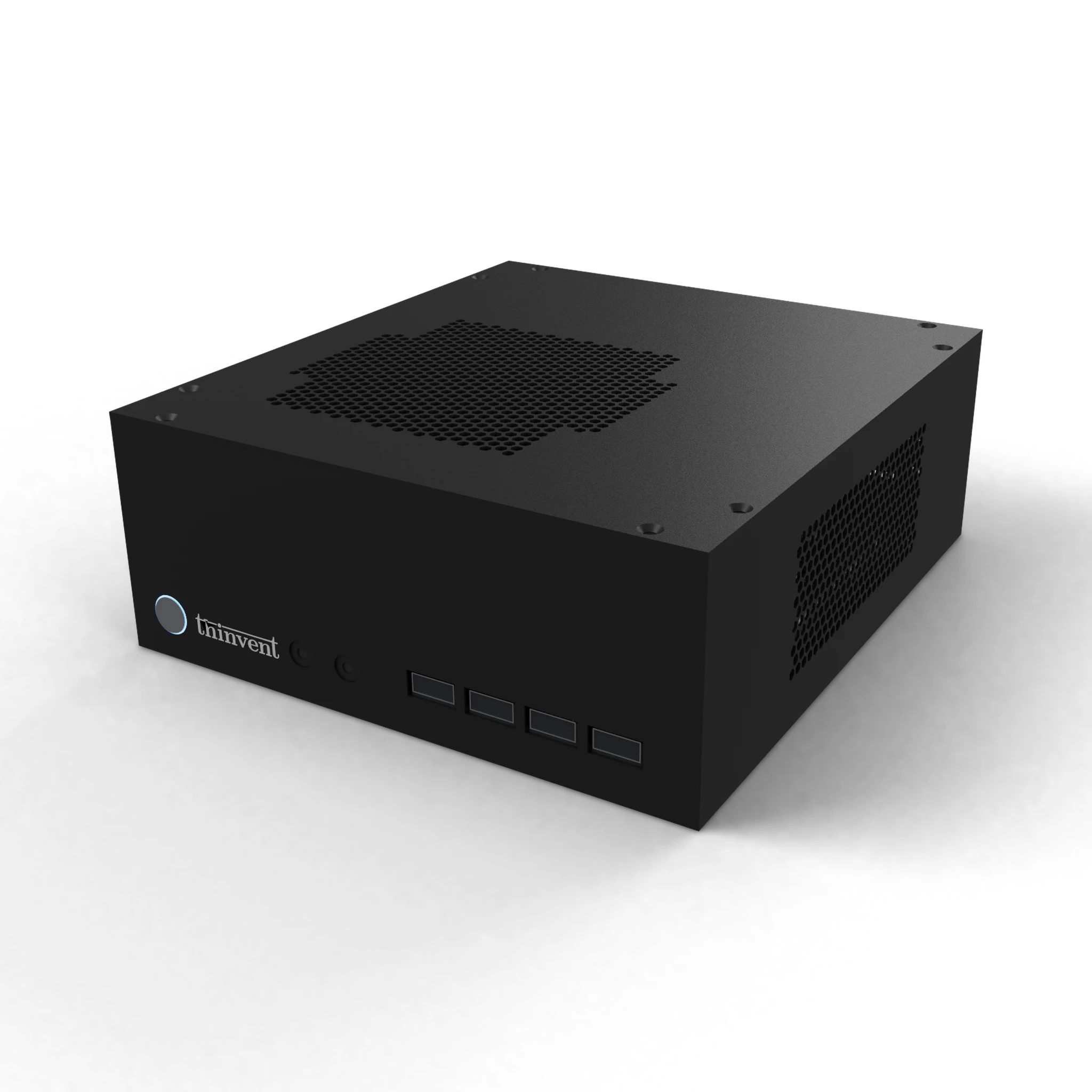
Thinvent's industrial computers — including the IPC3 series with Intel® Core™ i3-1215U processors, up to 16GB DDR4 RAM, and 1TB SSD — are designed for dependable long-term deployment in factories, kiosks, and control cabinets. Options include Windows 11 Pro, Windows 11 IoT, DOS, Ubuntu Linux 24.04 LTS, and Thinux™ Embedded Linux, plus quad DB9 serial variants for legacy equipment. Every unit supports standard BIOS recovery and clean OS reimaging, so restoring factory settings is quick and predictable.