A "lost connection to the RDP" error means the Remote Desktop session between your client device and the host machine was terminated mid-session. The message usually reads "Your session ended because of a network error" or "Reconnecting…" followed by a drop back to the login screen. The cause is rarely the RDP protocol itself — it is almost always the network path, a power-management setting, or a session timeout policy on the host or gateway. Diagnosing in that order resolves the majority of cases quickly.
Common Causes of RDP Disconnections
| Symptom | Likely Cause | Typical Fix |
|---|---|---|
| Drops after exactly 1–10 minutes of inactivity | Session time limit in Group Policy or RD Gateway timeout | Raise or disable idle/disconnected session limits |
| Drops only on Wi-Fi, stable on Ethernet | Packet loss, roaming between access points, power saving on the wireless adapter | Disable adapter power management, use wired Ethernet |
| Drops under heavy file copy or video | UDP transport fallback, MTU mismatch, bandwidth saturation | Force TCP-only transport, correct MTU, add QoS |
| Drops when the monitor sleeps | Client NIC or USB-Ethernet adapter enters low-power state | Disable "Allow the computer to turn off this device to save power" |
| Drops for all users at the same time | Host reboot, host NIC driver fault, switch or firewall session timeout | Check host uptime, NIC drivers, and firewall TCP idle timeout |
| Repeated reconnects every few seconds | Duplicate IP, ARP conflict, or flapping link | Verify IP addressing and switch port errors |
Diagnostic Steps
Start from the client: run a continuous ping -t to the host while working. If latency spikes or packets are dropped at the moment of disconnect, the problem is in the network path — check cabling, switch port counters and any firewall between the two. Then run tracert to identify which hop degrades. On the host, open Event Viewer and review Applications and Services Logs → Microsoft → Windows → TerminalServices-RemoteConnectionManager plus the System log for NIC and driver warnings.
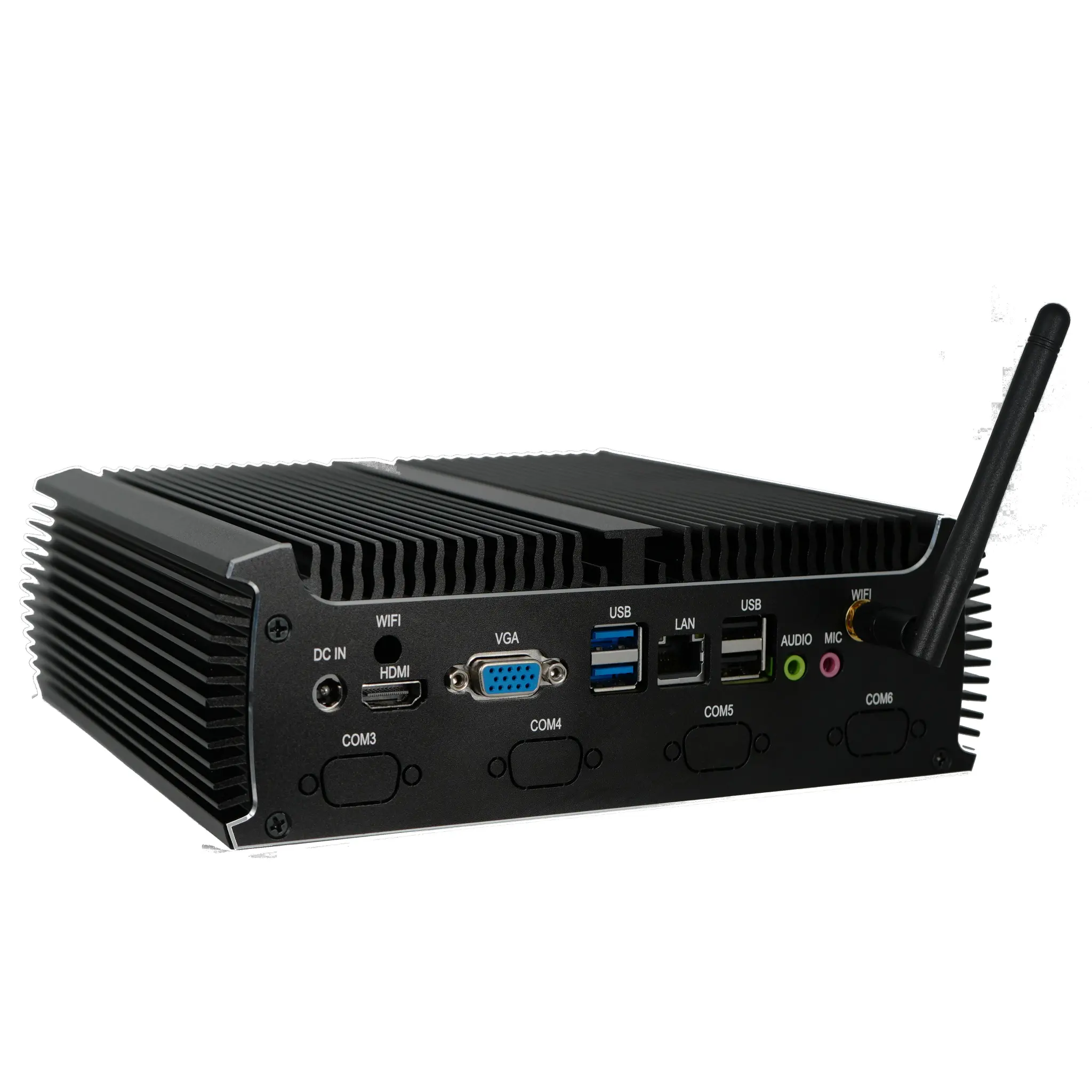
Power management is a frequent culprit on compact and fanless clients. In Device Manager, open the network adapter's properties and clear the option that lets Windows switch the device off to save power. In Control Panel power options, set the plan to never sleep and disable "Allow hybrid sleep". On managed fleets, deploy these as policy so every endpoint behaves identically.
Session and Policy Settings to Review
On the RD Session Host, check Administrative Templates → Windows Components → Remote Desktop Services → Remote Desktop Session Host → Session Time Limits. Set "End a disconnected session", "Active session limit" and "Idle session limit" to match your operational needs — an aggressive idle limit will feel exactly like a random disconnect to the user. Enable "Configure keep-alive connection interval" on the client side so idle sessions send heartbeat traffic and are not reaped by NAT tables or stateful firewalls. If you publish desktops through an RD Gateway or a load balancer, align their idle timeouts